
You upload a clean product photo or interface screenshot onto your site, type whatever comes to mind in ten seconds—or skip the field completely—and wonder later why your pages miss out on search visibility and leave visitors with unanswered questions.
Here is the plain truth:
Alt text is not a dumping ground for every keyword on your wish list, nor is it an optional box to ignore when you are in a rush. Good alt text gives people who cannot see an image the same clear meaning a sighted visitor gets at a glance, while helping search crawlers understand what each visual shows. Today we are walking through how to write crisp image alt text, handle tricky visuals like charts and decorative backgrounds, and build a repeatable habit—so you will discover how to make your alt text for images and image descriptions work for real visitors and search engines alike.
In the past, managing image descriptions across a growing site meant wrestling with cluttered media folders, figuring out where attributes lived in code, and guessing whether crawlers read your pages properly. Why do so many owners struggle when generating or adding images to a site? Writing clear alt text and understanding how search bots interpret media feels daunting when you are piecing everything together manually. Using BoltWeb gives you clear options when building and updating your site so search bots can understand your pages better while you serve the right people—and inside BoltWeb, AI Foundry helps you structure clean pages quickly so anyone can build a business and scale without getting bogged down in technical guesswork.
Let's walk through how to write, audit, and maintain alt text that genuinely helps your readers.
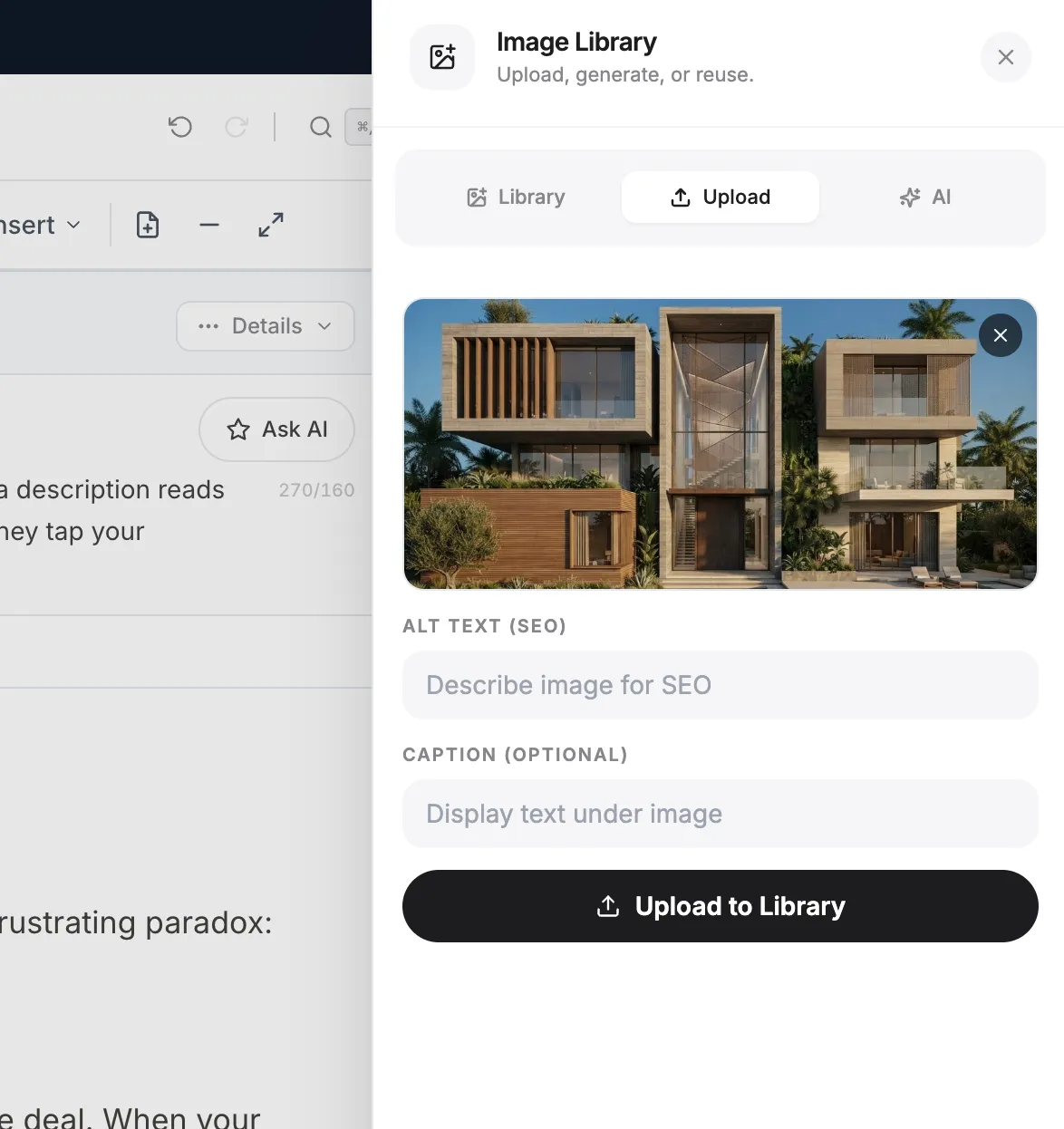
1. What Should You Write in the Alt Text Field for an Image?
Alternative text is a concise written substitute that explains the visual information a picture provides when someone cannot see it—whether because they use a screen reader, browse with images turned off, or load a page over a slow connection. It serves a different job from a visible caption below a photo, a file name like chair-hero.jpg, surrounding paragraph copy, or a hover title attribute.
When you write image alt text, focus on what a person needs to know to get the point of that picture on the page. Strong alt text for images and accurate image descriptions start with honest clarity rather than clever tricks (see W3C WAI: Images Tutorial for clear accessibility fundamentals).
2. Describe What the Image Actually Shows Instead of Stuffing in Keywords
Writing for a keyword list first and the reader second produces stiff, unnatural descriptions that sound robotic when read aloud by assistive technology. Instead, look closely at the image and note the main subject, any relevant action, the setting, and the visual details that connect to the surrounding paragraph.
| Visual Scenario | Weak / Keyword-Stuffed Approach | Helpful, Honest Description |
|---|---|---|
| Product photograph | Best office chair online buy office chair | Black leather office chair with adjustable armrests and a five-wheel base |
| Dashboard screenshot | Dashboard screenshot | Website analytics dashboard showing visitor traffic and page performance metrics |
| Decorative background | Blue gradient background banner design | alt="" (empty attribute when purely decorative) |
Putting accuracy first makes SEO alt text far stronger because a true description matches both the picture and the topic of the page. When you write image alt text for SEO around genuine descriptive alt text, visitors and search engines get clear meaning without forced phrasing.
3. How Long Should Image Alt Text Be? Write Enough, Not Everything
There is no rigid character count that works for every image on every site—what matters is writing enough detail to convey the image's role without burying the listener in trivia. A screen reader user who has to sit through a forty-word recital of every background object or shirt button loses patience fast.
Cut filler openers like "image of" or "photo showing," skip details that do not change understanding, and keep the description focused on what helps someone grasp the visual's purpose. Balanced image alt text length follows practical alt text best practices by delivering concise image descriptions that stay crisp and easy to follow.

4. Write Different Alt Text for Product Photos, Blog Images, and Screenshots
A single formula falls flat because a product photo, an editorial blog image, a software screenshot, a diagram, an infographic, a chart, and a step-by-step tutorial image each serve a different purpose. A shop visitor comparing specs cares about finish, size, or layout details, while a tutorial reader needs to see which button or setting is highlighted on screen.
Tailoring product image alt text, blog image alt text, screenshot alt text, and infographic alt text to the exact job of the visual makes your page much easier to navigate across every format.
5. When Should You Leave Image Alt Text Empty?
Not every image on a page carries essential meaning. Purely decorative borders, ornamental dividers, background flourishes, or pictures that repeat information already stated in plain text right beside them add clutter if announced aloud.
Using an empty alt="" attribute tells screen readers to skip the decorative graphic cleanly, whereas leaving the alt attribute missing altogether can force assistive tools to read out the raw file name instead. Knowing when to use decorative images, empty alt text, and a proper decorative image alt attribute keeps listening smooth and distraction-free (see MDN: The Image Embed Element).
Add Visual Clarity Across Every Page With BoltWeb
Build Clean, Conversion-Focused Pages Without Technical Friction
Do not let scattered media edits or clunky page setup slow down your momentum while visitors are looking for clear answers. Create and refine pages on BoltWeb with AI Foundry, connect your key guides naturally, and build a site ready to grow.
Get Started On Your Journey →6. Add Keywords to Image Alt Text Without Making Descriptions Sound Unnatural
A relevant term earns its place in alt text when it accurately names what is visible in the picture and reinforces the actual topic of the surrounding section. Repeating the exact same phrase across ten unrelated photos looks unnatural and gives readers zero extra help.
Let the image itself set the words—only weave in a target phrase when it fits naturally without distorting what appears on screen. Smart image SEO keywords support SEO image descriptions and honest keyword optimization when accuracy comes first (see Google Search Central: Google Images SEO Best Practices).
7. Write Alt Text for Images That Contain Text, Charts, and Diagrams
Screenshots showing menus or labels, data charts, maps, flow diagrams, and dense infographics often hold more detail than a brief alt description can comfortably carry on its own. Keep the alt text concise and informative, and place fuller explanations, data summaries, or key takeaways in nearby body text or a long description so every visitor can access the full information.
Pairing focused infographic alt text, chart alt text, and careful handling of text in images supports diagram accessibility without forcing readers to squint at tiny text inside a graphic.
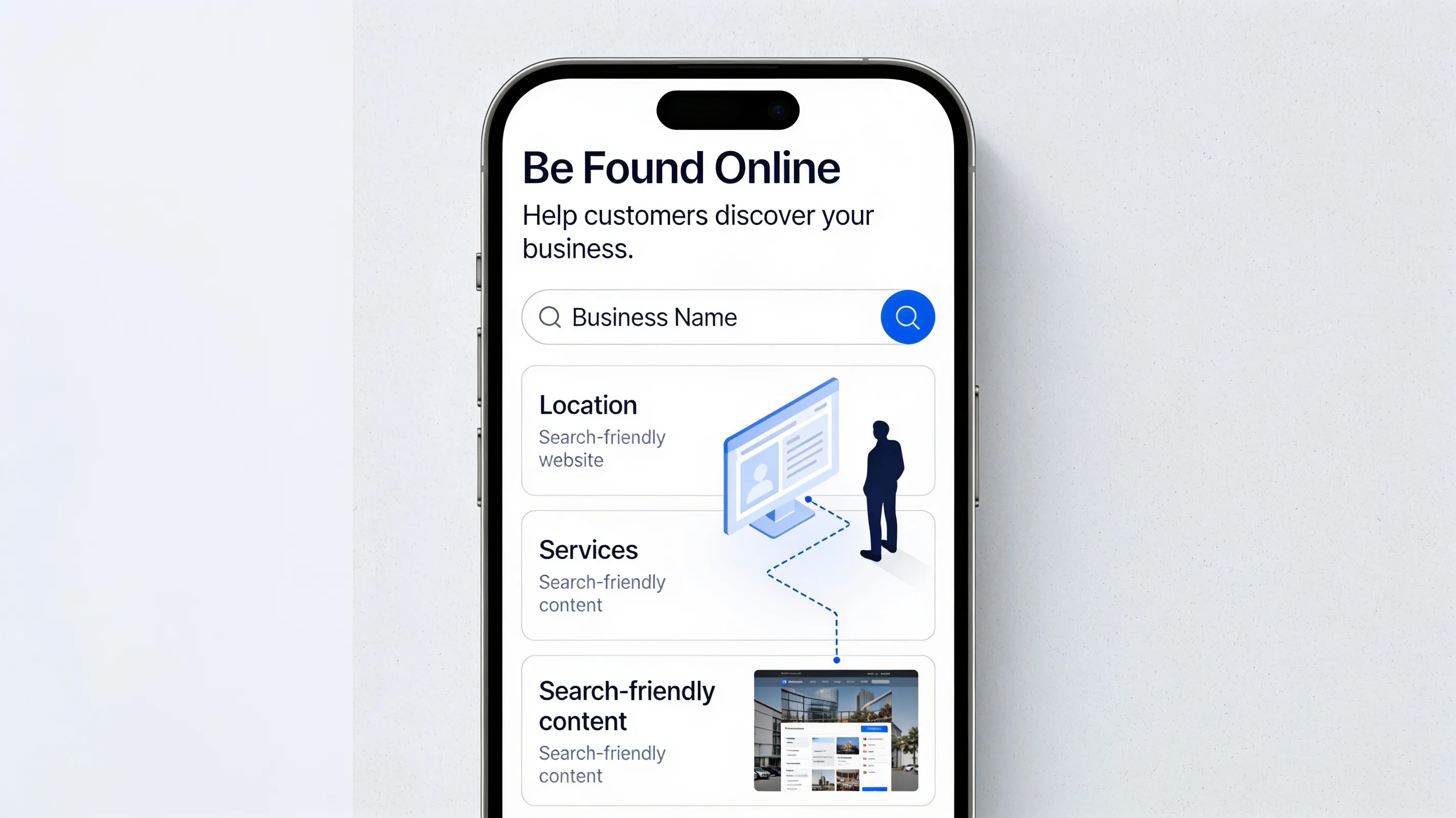
8. Find and Fix Missing, Duplicate, or Unhelpful Alt Text Across Your Website
If your site has grown over months or years, you likely have older uploads with blank fields, raw camera or export filenames, identical alt text copied across different photos, or vague labels that say nothing useful. Run a site crawl, scan your CMS media library, check pages with an accessibility tool, or inspect live pages to spot high-priority gaps first.
Targeting missing alt text, duplicate alt text, and generic placeholders during a website image SEO audit with a reliable alt text checker lets you fix high-impact pages without drowning in busywork (and pairs well with our guide to check website accessibility).
9. Write Alt Text That Matches the Image's Purpose on Each Page
Even the exact same image file can play a different role depending on where it sits—such as a hero banner, a product thumbnail, a step inside a how-to guide, a picture beside matching text, or an image wrapped inside a link. If an image acts as a link, its alt text should help communicate where that link leads or what action it triggers rather than just repeating redundant text.
Adapting contextual alt text, image descriptions for SEO, and linked image alt text to each placement keeps every page aligned with what the visitor is doing right there (and supports a clean internal linking strategy for small business).
10. Add Image Alt Text Correctly When Uploading Images to Your Website
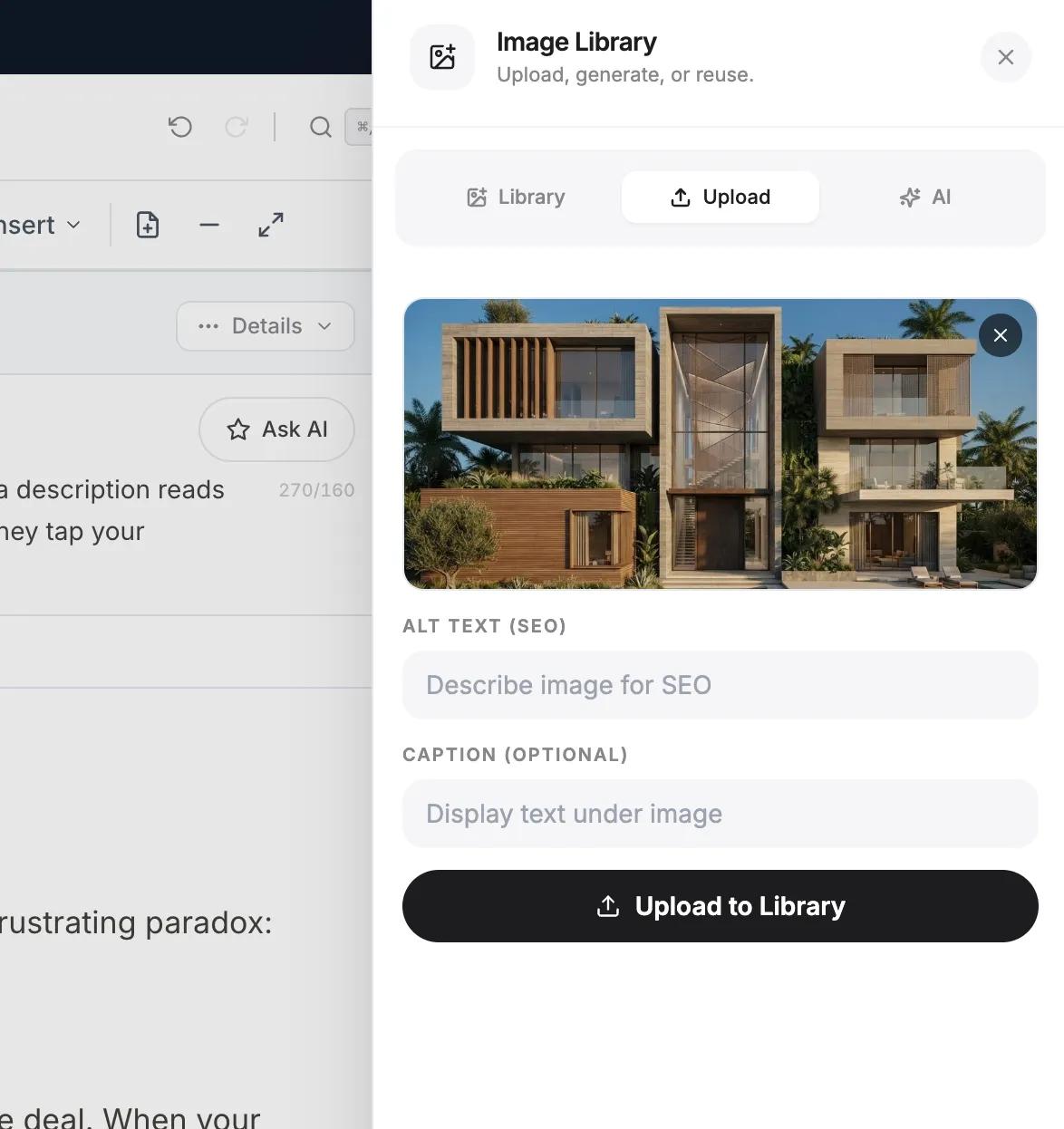
In your website editor or CMS, add or update the alternative text directly in the image settings or media field before publishing—and inspect the rendered page HTML (<img ... alt="...">) afterward to verify the attribute appears cleanly on the live page.
When you add and manage pages inside BoltWeb, you can edit image details directly in your visual workflow so search crawlers get clear signals while your site stays organized and easy to update. Getting comfortable with where to add alt text to images inside the image alt text field and website image editor on BoltWeb turns good writing into live page value.
11. Check Whether Your Image Alt Text Is Accurate and Useful
Automated checkers can flag an empty field, yet they cannot tell whether a description accurately reflects what is inside the photo or makes sense in context. Compare your description side by side with the image, strip out guesses or assumptions, check how it fits the surrounding section, confirm decorative images use alt="", and test how a screen reader announces it.
| Element | Question to Ask | How It Applies |
|---|---|---|
| Subject | What is the main object, person, or element? | Name the core thing visible first |
| Purpose | What information or action does the image communicate on this page? | Keep only details that support the page's goal |
| Context | Which relevant detail helps someone understand the image? | Add specific traits or surrounding context when helpful |
Use only the parts of this framework that add value—a simple product photo may only need its subject and key feature, while a complex instructional screen may need a fuller note and supporting body copy. Running this check image alt text habit raises alt text quality and makes image accessibility testing practical (see web.dev: Learn Accessibility — Images and our guide to optimize website images for SEO).
12. Build an Image Alt Text Checklist into Your Publishing Routine
The easiest way to avoid another massive cleanup later is to check alt text as you upload every new image—deciding whether it is decorative, writing an accurate description in context, avoiding repetitive keyword stuffing, and verifying the published page. When you build and manage sites with BoltWeb, its visual creation tools help you organize pages smoothly while your own review ensures every image description is accurate and purposeful before launch.
Following a steady image alt text checklist keeps SEO image optimization and website image accessibility strong on every new page you publish.
Give Every Visitor and Search Crawler a Clear Picture From the Start
Picture a prospective customer browsing your catalog on a slow signal or listening through a screen reader, getting the exact visual details they need without guesswork or clutter, and moving straight toward buying or reaching out with confidence.
Get Started On Your Journey →FAQs: Write Image Alt Text for SEO
1. I upload a photo onto my website, and the alt text box sits right there—what am I actually supposed to type inside it?
That blank box is meant to explain the visual meaning a picture shares when someone cannot see it—whether they browse with a screen reader, load your page on a patchy signal, or view a page with images turned off. It does a very different job from a caption beneath a photo, a raw filename, surrounding text, or a hover title note.
Writing clear image alt text gives people the core takeaway of the visual while helping search crawlers understand what alt text for images and image descriptions actually represent on the page. When you build with BoltWeb and AI Foundry inside BoltWeb, you can set up structured sections quickly and manage your image details smoothly—while still reviewing every finished page before sharing it widely.
2. Should I pack my main target keyword into every image's alt text to rank higher?
Stuffing the exact same keyword phrase into every image field makes descriptions sound stiff and repetitive when read aloud, and it does not give visitors any extra clarity. Instead, look at what is genuinely visible—the main subject, any action taking place, the setting, and details tied to the surrounding copy.
Putting truth and clarity first makes SEO alt text far stronger because an accurate description fits both the picture and the page topic. When you write image alt text for SEO around honest, descriptive alt text, visitors and search engines both get clear meaning.
3. Is there a strict character limit for alt text, or will search engines ignore a longer description?
There is no universal character ceiling that fits every graphic on every page—what matters is sharing enough detail to explain the visual's purpose without rambling through every tiny detail. Nobody listening through a screen reader wants a forty-word tour of every background item that does not affect understanding.
Dropping filler openings like "image of" or "picture showing" and keeping only details that change how someone understands the image keeps descriptions sharp. Balanced image alt text length follows sound alt text best practices by delivering concise image descriptions that stay easy to follow.
4. Can I use one standard alt text template for product photos, blog visuals, and screenshots?
A single fill-in-the-blank line falls short because a product photograph, an editorial blog image, a software screenshot, a chart, a diagram, and an infographic each serve a distinct role. A buyer comparing products cares about color, material, or layout details, whereas a reader following a tutorial needs to see what is shown on screen.
Adapting product image alt text, blog image alt text, screenshot alt text, and infographic alt text to the real purpose of each graphic makes your content far easier to grasp.
5. Do purely decorative images or dividers need alt text descriptions too?
Not every visual on a page carries fresh information. Decorative accents, background textures, or graphics that repeat what nearby text already explains add unnecessary noise if announced aloud.
Using an empty alt="" attribute lets screen readers skip purely decorative graphics cleanly, whereas leaving out the alt attribute altogether can cause assistive tools to read out raw filenames instead. Knowing when to rely on decorative images, empty alt text, and a proper decorative image alt attribute keeps listening smooth and uncluttered.
6. How can I weave search terms into alt text naturally without sounding repetitive?
A keyword belongs in an alt description when it accurately names what appears in the visual and matches the subject of the surrounding section—not when you force the same phrase onto unrelated pictures.
Let the image itself guide the wording first, adding relevant terms only where they describe the scene honestly. Thoughtful image SEO keywords strengthen SEO image descriptions and natural keyword optimization when accuracy leads the way.
7. What if a screenshot, chart, or diagram holds more detail than a short alt line can cover?
Data charts, graphs, maps, flow diagrams, and dense infographics often pack far more detail than a brief alt attribute can comfortably carry alone. Keep the alt text concise and informative, and put fuller data points, takeaways, or step-by-step explanations in nearby body copy or supporting text.
Pairing focused infographic alt text, chart alt text, and careful handling of text in images supports diagram accessibility without forcing readers to squint at tiny text inside a graphic.
8. I already have hundreds of uploaded images—how do I find the weak or missing alt text first?
Older pages often accumulate blank alt fields, camera filenames, vague labels, or copy-pasted descriptions across unrelated photos. Scanning with a site crawler, checking your media library, running an accessibility check, or inspecting live pages helps you spot high-priority gaps fast.
Focusing on missing alt text, duplicate alt text, and generic placeholders during a website image SEO audit with a dependable alt text checker lets you fix what matters most without getting bogged down.
9. If I reuse the same image in two places on my site, should the alt text stay identical?
Even the same image file can play a different role depending on context—such as sitting in a hero banner, appearing as a product thumbnail, illustrating a step in a guide, or acting as a clickable link to another page. When an image links somewhere, its alt text should help convey where that link goes or what action it takes rather than repeating redundant text.
Matching contextual alt text, image descriptions for SEO, and linked image alt text to each placement keeps every page clear and connected (and works naturally alongside a structured internal linking strategy for small business).
10. Where do I actually enter alt text so it shows up on my live website?
Add or update alternative text right in your image or media settings inside your page editor before publishing, then view the page source or inspect the rendered element to confirm the alt attribute is present on the published page.
When you create and edit pages in BoltWeb, managing image text inside your visual workflow helps keep pages structured while still letting you verify the published output. Getting familiar with where to add alt text to images inside the image alt text field and website image editor on BoltWeb makes updating media straightforward.
11. How do I know my alt text is genuinely helpful instead of just checked off?
Automated tools can spot a missing attribute, yet they cannot judge whether a description matches what is really inside the picture or makes sense in context. Compare the text against the actual image, remove guesses, check how it fits the paragraph around it, verify alt="" on decorative visuals, and listen to how a screen reader announces it.
Using a clear mental check to check image alt text improves alt text quality and makes image accessibility testing far more reliable than relying on a quick scan alone.
12. How do I keep new image uploads accurate without doing another massive cleanup later?
Make alt text part of your normal upload routine—deciding whether a visual is decorative, writing a clear description in context, avoiding forced keyword repetition, and checking the published page. When you build and manage sites with BoltWeb, its visual creation tools help you organize pages cleanly while your own review keeps every image description accurate before launch.
Following a steady image alt text checklist keeps SEO image optimization and website image accessibility consistent across every new page you publish.
Picture a potential customer browsing your service or product page on a slow connection or with a screen reader, getting clear visual context on every meaningful image without guesswork, and taking the next step toward buying or reaching out with confidence.