
Every month, millions of potential customers turn to Google to find local contractors, consulting agencies, boutique shops, and professional services. You spend weeks perfecting your copy, uploading product photos, and refining your pricing. But when you type your business name or primary service into a search bar late at night, an uncomfortable realization hits: "Is my website actually visible on Google, or am I shouting into a completely empty void?"
Here is the plain truth: Having a live website domain does not mean Google has included your pages in its search index. If search engine crawlers cannot crawl, index, and interpret your content, your storefront remains invisible to the very buyers who are actively searching for what you sell.
Mastering Google Search Console for small business operations removes the guesswork from search engine optimization, giving you direct, verified data on how Google sees, ranks, and indexes your online storefront.
Historically, setting up search monitoring required editing complex server records, wrestling with DNS TXT tags, and deciphering obscure crawling logs. Modern platforms have eliminated that technical nightmare entirely.
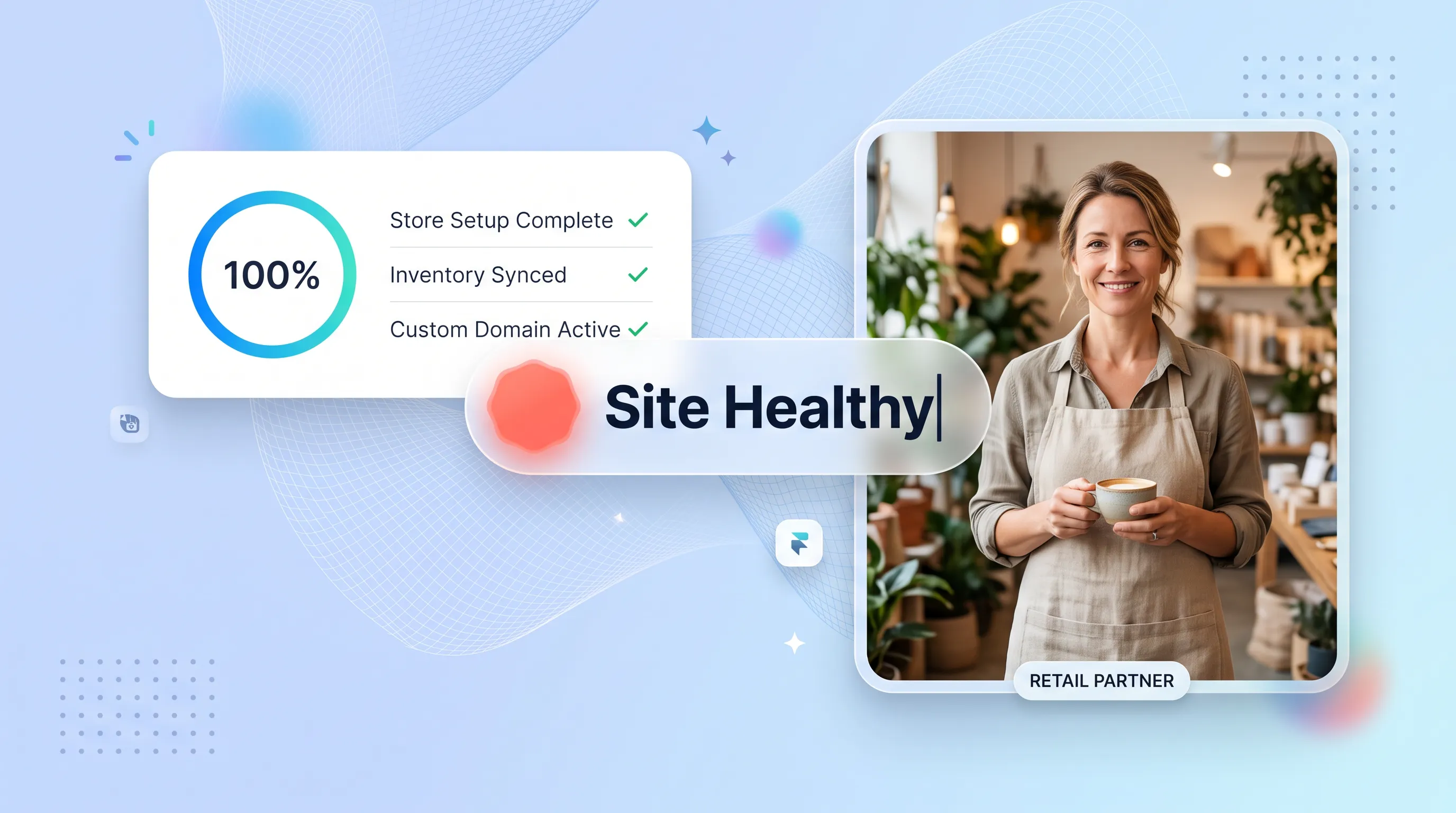
When you launch your digital presence on BoltWeb, connecting your site to Google Search Console is seamless right out of the box. As an all-in-one business website builder, BoltWeb eliminates manual tracking friction. On traditional website builders, you are forced to manually verify property ownership, generate external XML files, and copy-paste code snippets. BoltWeb changes the game. Once you publish your site and attach a domain—whether bought externally or registered directly through BoltWeb with pre-configured DNS records—you simply navigate to your settings dashboard, click "Connect Google Search Console", and authorize your account. BoltWeb automatically verifies your property and auto-submits your sitemap instantly!
Here is your master operational Google Search Console guide to monitoring organic search performance, fixing indexing issues, and turning raw impressions into daily customer revenue.
BoltWeb vs. Traditional Website Builders: Google Search Console & SEO Infrastructure
Setting up Google Search Console and establishing organic search visibility is where the operational difference between BoltWeb and traditional platforms becomes immediately obvious. While legacy builders force you to navigate third-party plugins, manually edit server files, and execute multi-step verification routines, BoltWeb automates the entire search indexing pipeline natively within your dashboard.
Here is a direct operational comparison of how BoltWeb compares to traditional website platforms when connecting Google Search Console and scaling your organic search performance:
| Technical Workflow Feature | Traditional Builders (WordPress, Wix, Squarespace) | BoltWeb Automated Architecture |
|---|---|---|
| GSC Property Connection | Requires manual HTML file uploads, meta-tag pasting, or editing complex DNS TXT records. | 1-Click Native OAuth Connection directly inside your settings dashboard. |
| Custom Domain Configuration | Requires manual A-record and CNAME mapping before external SEO verification can begin. | Pre-Configured Infrastructure where custom domains auto-sync with search verification tags instantly. |
| XML Sitemap Management | Requires installing, configuring, and updating third-party plugins (e.g., Yoast, RankMath). | Native Dynamic Auto-Sync that generates and updates your sitemap URL every time you hit publish. |
| GSC Sitemap Submission | Forces you to copy your sitemap URL, log into GSC manually, and submit the path by hand. | Automatic Submission Engine that pushes your fresh sitemap directly to Google upon site publication. |
| Indexing Status Audits | Requires manual URL searches (site:domain.com) or running isolated inspections one URL at a time. | Instant Diagnostic Verification to confirm indexed pages right from your publishing screen. |
| Search Query Intelligence | Requires exporting raw CSV spreadsheets from GSC and manually mapping impressions against clicks. | Integrated AI Foundry that analyzes GSC data automatically to surface top queries and low-CTR pages. |
| Automated Growth Recommendations | Zero native guidance; requires hiring SEO consultants or digging through conflicting data reports. | Built-in AI Insights providing weekly action items on what content, titles, and headers to optimize. |
Why BoltWeb's Automated Setup Eliminates Technical Bottlenecks
1. Zero Manual DNS or Code Verification: On traditional platforms, connecting Google Search Console for small business management often stalls due to verification failures or misplaced header scripts. On BoltWeb, clicking "Connect Google Search Console" authorizes your domain in seconds without touching a single line of code.
2. Instant Sitemap Deployment: You never have to worry about whether Google knows your new blog post or landing page exists. Every page published via our AI website generator is immediately added to your dynamic sitemap and queued for crawling.
3. Actionable AI Analytics via AI Foundry: Most business owners connect Search Console but never look at the reports because raw data tables are intimidating. BoltWeb's proprietary AI Foundry translates raw search impressions, clicks, and rank positions into plain-English optimization steps—showing you exactly which pages need headline updates to turn search visibility into daily business revenue.
1. What Is Google Search Console and Why Does Your Small Business Need It?
Let's clear up the biggest source of confusion in search engine marketing right from the start: Google Analytics and Google Search Console do two completely different jobs. Google Analytics measures what human visitors do after they arrive on your site (such as session duration, pageviews, and form submissions). Google Search Console (GSC) measures what happens before a user arrives—how Google's automated web crawlers discover, inspect, index, and rank your content in organic search results.
| Google Analytics 4 (GA4) | Google Search Console (GSC) |
|---|---|
| Tracks User Behavior On-Site | Tracks Search Visibility On-Google |
| Measures Conversions & Leads | Measures Clicks, Impressions, & CTR |
| Analyzes Session Funnels | Monitors Indexing Status & Crawl Errors |
Setting up Google Search Console for small business management provides verified diagnostic data, making this Google Search Console guide an indispensable part of your growth kit (start with the foundational Google Analytics setup walkthrough for small businesses).
2. How to Set Up Google Search Console for Your Website
Verifying site ownership is the mandatory first step that gives you access to Google's search metrics. Google offers two distinct property setup methods:
- Domain Property (example.com): Captures all subdomains (www, blog, shop) and protocols (http, https). Requires adding a DNS TXT record inside your domain registrar's DNS settings.
- URL-Prefix Property (https://www.example.com): Tracks only the exact URL protocol specified. Allows verification via HTML file upload, HTML meta-tags, or Google Analytics tags.
If you use traditional web tools, setting this up requires manual file uploads and DNS editing. But when you build on BoltWeb, completing your Google Search Console setup takes seconds. With pre-configured domain routing and single-click GSC integration, you can add website to Google Search Console and verify website ownership effortlessly (also see how to connect a domain to your website).
3. Submit Your XML Sitemap to Help Google Discover Important Pages
An XML sitemap is a structured roadmap file that lists every essential page, blog post, and service URL on your site, helping search engine bots discover new content quickly. How to locate and process your sitemap:
- Identify your sitemap web address (typically located at yourdomain.com/sitemap.xml).
- Log into GSC, navigate to Sitemaps under the Indexing menu, enter your sitemap string, and hit Submit.
- Verify that the processing status returns a clean green "Success" signal.
While traditional platforms require you to manually generate files and upload plugins, BoltWeb auto-generates and updates your sitemap file dynamically every time you hit publish. Knowing how to submit sitemap to Google Search Console ensures your XML sitemap accurately feeds your Google Search Console sitemap pipeline (learn details in internal linking strategy for small business SEO).
4. Check Which Website Pages Google Has Indexed
Here is the plain truth: Google does not index every web page it discovers. Indexing means Google has inspected your content and stored it inside its database, making it eligible to appear in organic search results.
Open the Page Indexing Report inside GSC to evaluate two primary URL categories:
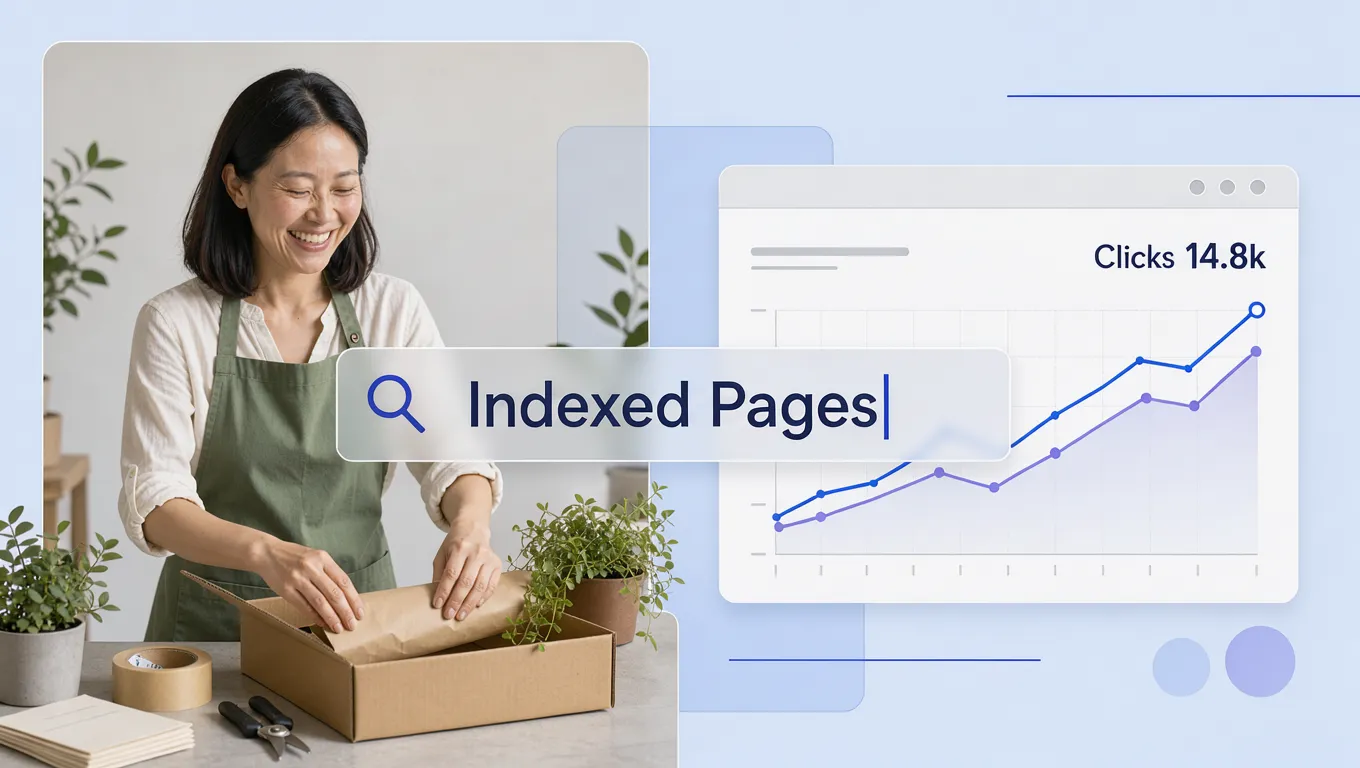
- Indexed Pages: Green status URLs that are live in Google's search engine.
- Not Indexed Pages: Grey status URLs excluded from search results due to canonical tags, 404 errors, redirects, or thin content flags.
To perform a quick manual verification, open a browser window and type site:yourdomain.com/your-page-url. If your page snippet appears, your content is live! Reviewing your Google Search Console indexing reports clarifies the page indexing report so you can check indexed pages systematically (also see how to check if your website is indexed).
5. Use URL Inspection to Check an Individual Page
"How can I check whether one specific page is on Google?"
When you launch a brand new product landing page or update your primary pricing table, you shouldn't have to wait weeks for Google to discover the changes naturally. The URL Inspection Tool acts as a live diagnostic scanner for any single page URL:
- Paste your target page URL into the top search bar inside Search Console.
- Review the live indexing status card to confirm crawlability and canonical alignment.
- Click Request Indexing to place your updated page into Google's priority recrawl queue.
Mastering Google Search Console URL inspection lets you inspect URL parameters cleanly and request indexing in Google for immediate visibility (see identifying your best performing website pages).
6. Understand the Google Search Console Performance Report
The Performance Report is the commercial heart of Search Console, tracking how often real searchers see and click your search results. Four core performance metrics to monitor:
- Total Clicks: The number of times users clicked your search result to enter your site.
- Total Impressions: How many times your search result snippet appeared on a user's screen.
- Average CTR (Click-Through Rate): The percentage of impressions that generated a click:
- Average Position: Your average numeric ranking placement across all search queries.
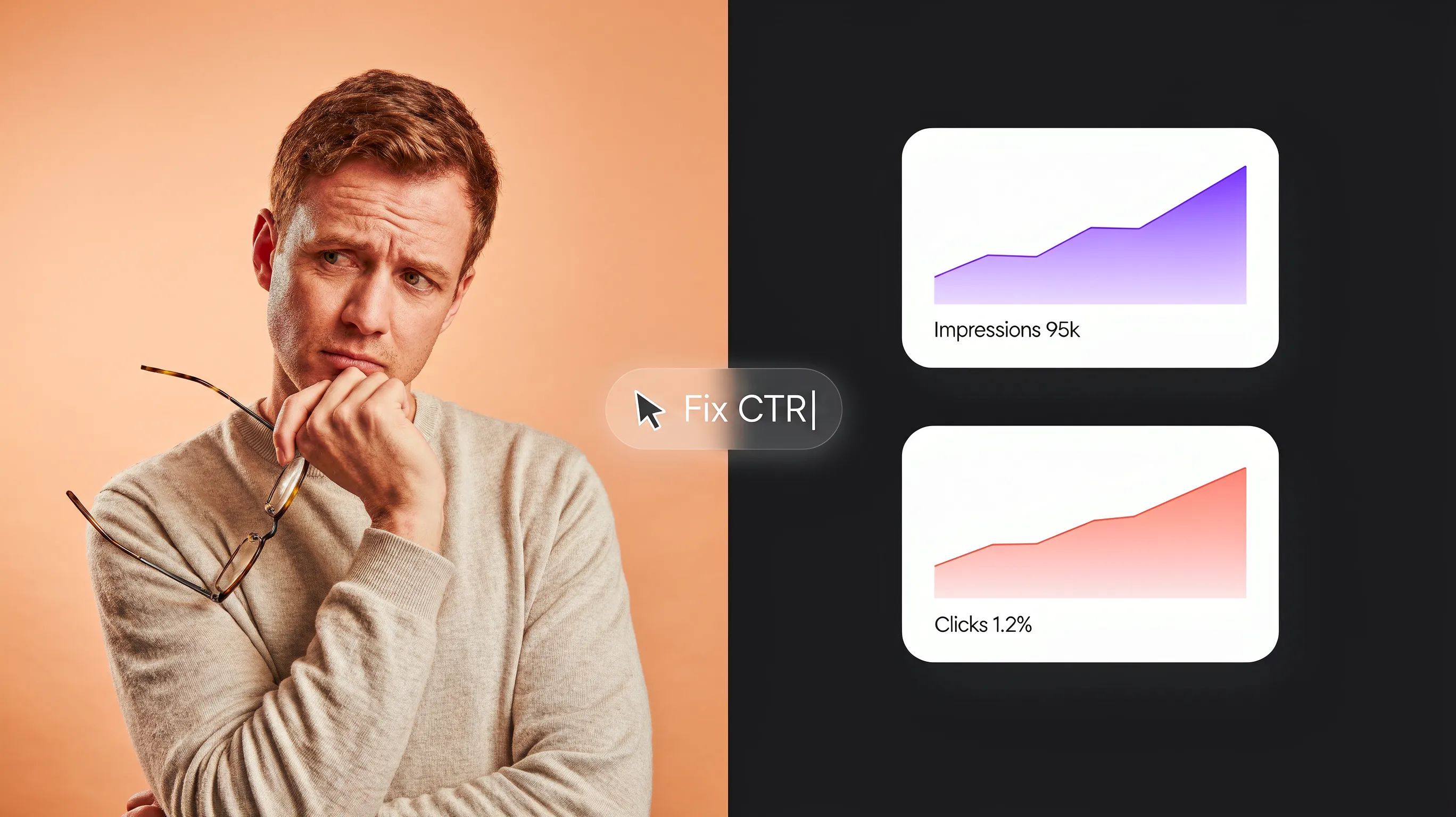
Inside BoltWeb, analyzing these metrics is even simpler. BoltWeb features an integrated AI Foundry—the industry's first AI website workspace built with native Google Search Console integration. Instead of forcing you to wade through raw data tables, AI Foundry analyzes your GSC performance metrics automatically, telling you what queries your website gets, what customers click, and what content to refine to scale your revenue! Reading the Google Search Console performance report helps interpret GSC clicks and impressions to optimize average CTR (combine with analyzing website traffic reports).
7. Find the Search Queries Bringing Customers to Your Website
Understanding the exact keywords prospects enter into Google before finding your brand allows you to optimize your sales messaging around real search intent. In the Performance report, select the Queries tab to analyze keyword metrics:
| Query Category | Commercial Search Intent Example |
|---|---|
| Branded Search Queries | "BoltWeb pricing", "Acme Plumbing" |
| Non-Branded Commercial Terms | "best website builder for small business" |
| Local Intent Search Queries | "emergency plumber in Austin TX" |
Analyzing Google Search Console search queries uncovers real terms inside your search queries report to optimize keyword performance in GSC (see finding keywords in Google Search Console).
8. Find Which Website Pages Are Getting Search Traffic
Not all pages on your site perform equally. Often, a handful of high-authority service guides generate 80% of your total organic click volume. In the Performance report, select the Pages tab to audit page-level traffic:
- Sort your table by Clicks to identify your top revenue-generating front doors.
- Sort your table by Impressions to discover hidden pages that get search visibility but lack user clicks.
- Compare landing pages against search intent to refine call-to-action placement (see landing page CTA best practices).
Reviewing the Google Search Console pages report isolates your top performing pages to maximize overall website page performance.
9. Find SEO Opportunities by Comparing Impressions, Clicks, and CTR
"My pages appear in Google, but people aren't clicking. What should I change?"
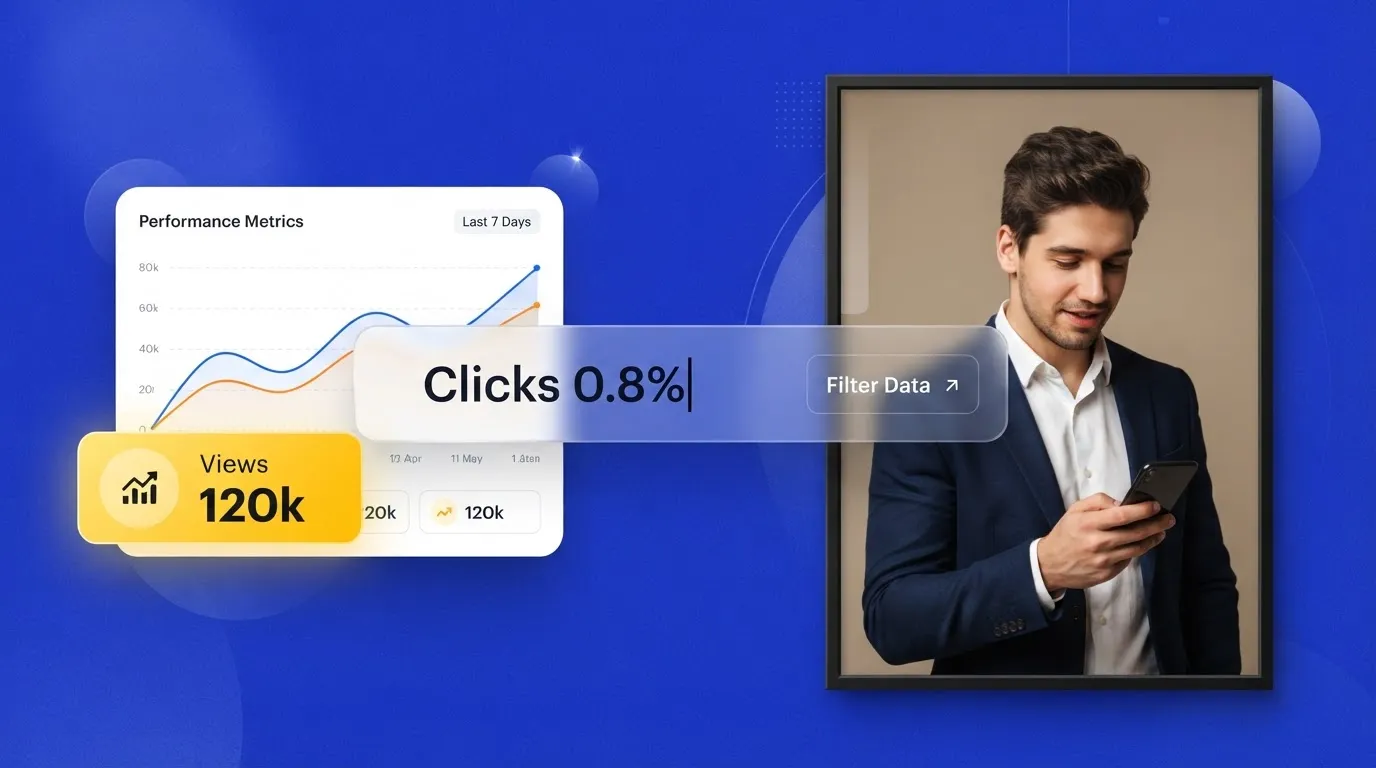
Here is one of the highest-leverage SEO growth tactics available: Finding pages that receive thousands of search impressions but suffer from a low click-through rate.
BoltWeb's integrated AI Foundry automatically flags these exact opportunities for you. It scans your Search Console performance data, highlights pages with high impressions and low clicks, and provides actionable recommendations to rewrite headlines and meta copy. Learning to improve Google Search CTR unlocks hidden Google Search Console SEO opportunities by analyzing search impressions and clicks (also see fixing pages with high impressions but low clicks).
10. Use Search Console to Diagnose Sudden Drops in Organic Traffic
Discovering a sudden dip in your daily visitor graphs can cause immediate panic, but GSC provides systematic diagnostic tools to locate the exact cause. Follow this step-by-step diagnostic sequence:
Using BoltWeb's AI Foundry, tracking traffic shifts is effortless. The system analyzes date range changes, diagnoses sudden performance dips, and alerts you if technical issues arise. Using GSC to analyze a Google Search Console traffic drop lets you diagnose organic traffic loss and address a search performance decline quickly (see diagnosing a sudden drop in website traffic and fixing high-traffic pages that fail to convert).
11. Check Mobile Usability, Core Web Vitals, and Search Enhancements
Google prioritizes fast, mobile-friendly storefronts that deliver smooth user experiences across all screen sizes. Monitor these technical diagnostic reports inside GSC:
- Core Web Vitals Report: Measures real-world loading speed (LCP), interactive responsiveness (INP), and visual layout stability (CLS).
- Mobile Usability Report: Highlights touch elements placed too close together, text that is too small to read on phones, or content wider than the mobile screen.
- Rich Result Enhancements: Verifies structured schema markup for products, FAQs, local business details, and customer reviews.
Auditing Google Search Console Core Web Vitals strengthens your mobile SEO and validates your structured data report setup (see building trust on a business website).

12. Create a Simple Monthly Google Search Console Routine
Reviewing search data sporadically leads to missed revenue opportunities. Establishing a simple 15-minute monthly review routine keeps your growth engine on track. Your 15-minute monthly GSC optimization routine:
- Check Month-Over-Month Performance: Compare total clicks, impressions, and average CTR against the prior 30-day window.
- Identify Top 5 Query Winners & Losers: Spot emerging search terms to target in upcoming content.
- Audit Indexing Health: Ensure new blog posts and service landing pages are indexed cleanly.
- Fix Low-CTR High-Impression Pages: Rewrite title tags and description snippets on pages receiving high visibility but low click volume.
- Sync With Financial Conversion Tracking: Connect organic search clicks to completed form leads and sales (see tracking contact form submissions in GA4 and how to calculate website ROI).
Learning how to use Google Search Console establishes a repeatable way to analyze Google Search Console reports and monitor SEO performance on BoltWeb (combine with the core metrics every small business should monitor).
Build a Search-Optimized Storefront With BoltWeb
Monitoring search performance, fixing indexing issues, and optimizing meta titles shouldn't feel like a frustrating technical chore. When you publish your digital storefront on BoltWeb, every page is engineered for instant search visibility and high conversion right out of the box.
Whether you run a local home service company, a boutique consulting agency, or a growing online shop, BoltWeb designs search-optimized section layouts, connects Google Search Console in a single click, auto-updates XML sitemaps, and powers your growth with AI Foundry analytics.
Frequently Asked Questions: Google Search Console for Small Businesses
1. My website is live, but why aren't potential customers finding my business on Google?
Here is the plain truth: Publishing a domain does not automatically place your pages inside Google's search index. If search crawlers haven't scanned and cataloged your content, your business remains completely invisible to buyers typing in terms related to your services. Using Google Search Console for small business operations bridges this exact gap, showing you precisely how Google crawls, indexes, and ranks your pages. To turn your digital presence into a steady customer magnet, monitor your indexing status alongside your primary organic search data. When you build your storefront on BoltWeb, search engine submission is completely streamlined from day one. As an all-in-one business website builder, BoltWeb features a single-click GSC integration—authorizing your domain, auto-generating dynamic XML sitemaps, and syncing your pages directly with Google in under 60 seconds!
2. What is the exact difference between Google Search Console and Google Analytics?
Look at it this way: Google Search Console and Google Analytics track two completely different stages of your customer journey. Google Search Console (GSC): Measures what happens before a user arrives on your site—focusing on search visibility, keyword impressions, search engine rankings, crawling errors, and page indexing. Google Analytics 4 (GA4): Measures what happens after a user arrives—tracking pageviews, session duration, scroll depth, and completed form leads. Understanding this clear operational boundary makes any Google Search Console guide actionable, ensuring you monitor off-site visibility in GSC while tracking on-site visitor behavior in GA4 (start with the foundational Google Analytics setup walkthrough for small businesses).
3. How do I set up Google Search Console without touching server code or breaking my website?
Connecting your website to Google Search Console requires verifying that you are the legitimate owner of the domain. Traditional web platforms force you to select between two verification routes: Domain Property (example.com): Requires logging into your domain registrar (like GoDaddy or Namecheap) and pasting a DNS TXT record into your DNS server configuration. URL-Prefix Property (https://www.example.com): Requires pasting an HTML meta-tag snippet into your website header or uploading a static HTML verification file to your root server. If you want to skip manual code editing entirely, BoltWeb makes Google Search Console setup effortless. Inside your settings dashboard, simply click "Connect Search Console" to complete authentication, add website to Google Search Console, and verify website ownership automatically!
4. How do I submit an XML sitemap so Google discovers my pages instantly?
An XML sitemap acts as a digital roadmap that tells search engine bots exactly which service pages, product catalogs, and blog posts are ready to be indexed. Follow these direct steps to submit your sitemap: Locate your sitemap web address (typically found at yourdomain.com/sitemap.xml). Log into Search Console, navigate to Sitemaps under the Indexing menu, and type sitemap.xml into the input field. Click Submit and verify that your status returns a green "Success" confirmation. Learning how to submit sitemap to Google Search Console ensures Google ingests your XML sitemap correctly across your entire Google Search Console sitemap file (see internal linking strategy for small business SEO).
5. Why are some of my core business pages missing from Google search results?
Discovering that your main service guide or location page doesn't show up on search results pages usually points to a specific indexing exclusion. Open the Page Indexing Report inside GSC to audit two main URL categories: Indexed Pages: URLs that Google has successfully scanned, stored, and approved to show up in search queries. Not Indexed Pages: URLs excluded due to missing canonical tags, 404 broken links, server timeouts, or noindex directives. Auditing your Google Search Console indexing reports clarifies your page indexing report so you can check indexed pages systematically and resolve visibility blocks (also see how to check if your website is indexed).
6. How can I check if one specific page is live on Google right now?
When you publish a brand-new pricing table or launch a promotional landing page, you don't have to wait weeks to see if Google has cataloged it. Use the URL Inspection Tool inside Search Console to run an instant check: Paste your target page link into the top search bar inside GSC. Review the live status card to check for crawling, indexability, and canonical alignment. Click Request Indexing to push your updated page into Google's priority recrawl queue. Mastering Google Search Console URL inspection lets you inspect URL parameters quickly and request indexing in Google without delay (see identifying your best performing website pages).
7. Which numbers in the GSC Performance Report actually tell me if my SEO is working?
The Performance Report is the central command module of Search Console, tracking how searchers interact with your search snippets. Four core metrics to monitor every month: Total Clicks: The exact number of searchers who clicked your result and entered your storefront. Total Impressions: How many times your search snippet appeared on a user's screen. Average CTR (Click-Through Rate): The percentage of total impressions that converted into actual visits:
Average Position: Your aggregate numeric ranking placement across all logged search queries. Reading your Google Search Console performance report helps interpret GSC clicks and impressions to continuously improve your average CTR.
8. How do I find the exact search terms customers type into Google before landing on my site?
Understanding the real phrases prospects use to find your business allows you to refine your sales messaging around verified buying intent. Inside the Performance report, click the Queries tab to analyze keyword performance: Branded Search Terms: Searches containing your exact company name (e.g., "BoltWeb reviews"). High-Intent Commercial Queries: Non-branded terms reflecting immediate buying needs (e.g., "best website builder for small business"). Analyzing Google Search Console search queries reveals hidden terms in your search queries report, helping you optimize keyword performance in GSC (see finding keywords in Google Search Console).
9. My pages get thousands of search impressions, but why is nobody clicking through?
Here is one of the highest-leverage growth opportunities in search engine optimization: Finding pages that display massive search visibility (impressions) but suffer from a weak click-through rate (CTR).
When you build on BoltWeb, surfacing these high-potential pages is completely automated. BoltWeb features an integrated AI Foundry—the industry's first AI workspace built with native Search Console intelligence. AI Foundry analyzes your GSC data, flags low-CTR pages, and recommends high-converting headlines so you can improve Google Search CTR, capture Google Search Console SEO opportunities, and maximize search impressions and clicks (also see fixing pages with high impressions but low clicks)!
10. My organic traffic suddenly dropped this week. Can Search Console show me why?
Discovering a sudden drop in website traffic can trigger immediate panic, but GSC gives you a clear diagnostic path to locate the root cause. Follow this systematic investigation sequence: Compare Date Ranges: Compare the 28 days after the drop against the 28 days before to isolate the exact date the decline started. Inspect Page-Level Losses: Check the Pages tab to see if the loss is sitewide or isolated to a single broken URL. Audit Manual Actions: Open the Security & Manual Actions tab to confirm your site hasn't been flagged for security issues or search penalties. Using GSC to analyze a Google Search Console traffic drop allows you to diagnose organic traffic loss and address a search performance decline systematically (see diagnosing a sudden drop in website traffic).
11. Are technical website bugs or slow loading speeds hurting my Google rankings?
Google prioritizes fast, mobile-responsive storefronts that deliver clean user experiences across all devices. Audit these essential technical health reports inside GSC: Core Web Vitals Report: Measures loading speed (LCP), visual layout stability (CLS), and interaction responsiveness (INP). Mobile Usability Report: Highlights mobile layout bugs, such as clickable elements placed too close together or text that is too small for smartphone screens. Enhancements & Schema Reports: Verifies structured data markup for product catalogs, local business details, and client reviews. Reviewing Google Search Console Core Web Vitals strengthens your mobile SEO and validates your structured data report configuration (see building trust on a business website).