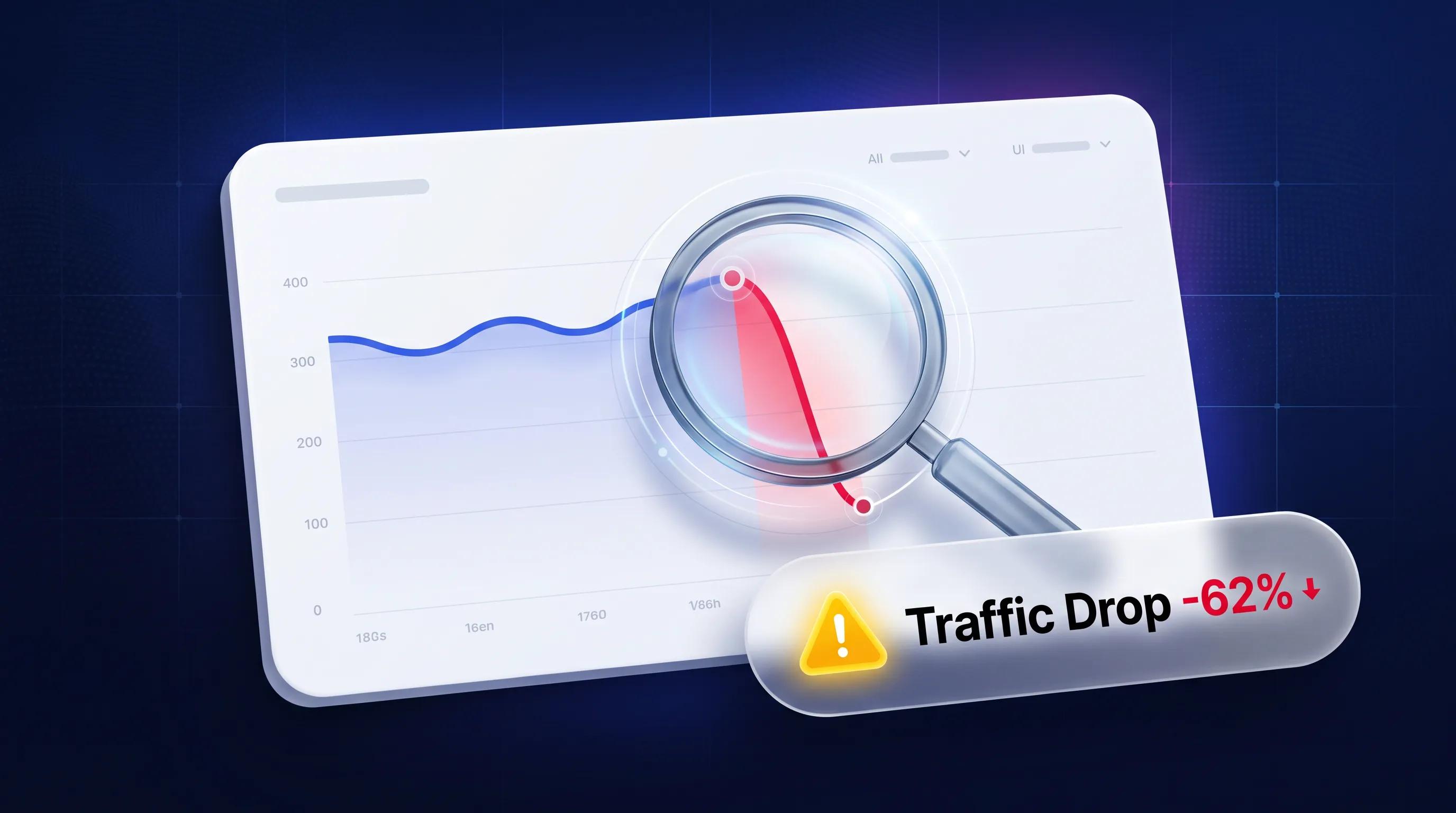

You open your analytics dashboard, expect to see steady sales leads, and suddenly freeze. The traffic line hasn't just dipped—it has plummeted off a cliff. Yesterday, potential clients were browsing your services; today, your real-time reports look like a ghost town.
Before you panic and rewrite every line of sales copy on your storefront, let's step back: A sudden traffic collapse is a diagnostic puzzle, not a permanent death sentence for your business. Whether a tracking tag snapped, a search engine algorithm updated, or an ad campaign expired, acting out of panic usually makes a minor setup issue significantly worse.
Here is your master operational blueprint to diagnose a sudden drop in website traffic, uncover the exact technical root cause, and execute a structured recovery plan to restore your organic visibility and daily client revenue.
1. Sudden Drop in Website Traffic? Start by Finding Out What Changed
Let's clear up the immediate urgency right from the start: When your numbers drop overnight, your first job isn't to start tweaking your website design—it's to figure out what actually broke. A sudden drop in website traffic usually boils down to one of four distinct scenarios:
| Incident Scenario | What Actually Happened |
|---|---|
| Technical Tracking Break | Visitors are arriving, but GA4 stopped logging events. |
| Isolated Search Penalty | Google deindexed a specific high-value landing page. |
| Marketing Channel Pause | A paid ad campaign or email broadcast ran out of budget. |
| True Organic Visibility Shift | An algorithm update or competitor moved your rankings. |
Before assuming your business is losing market share, you need to verify whether you have fewer actual visitors or simply broken data. Knowing how to interpret the changes in your traffic reports stops you from making reckless edits to pages that are actually performing fine (start with the foundational Google Analytics setup walkthrough for small businesses).
2. Confirm Whether Your Website Traffic Has Actually Dropped
Here is a common trap business owners fall into: comparing a holiday Monday to a peak business Tuesday and assuming their site is dying. To confirm a true sudden decrease in website traffic, you must evaluate consistent date ranges:
- Compare Like-for-Like Days: Match Tuesday-to-Thursday of this week against Tuesday-to-Thursday of last week.
- Account for Seasonality: Compare your current 30-day window to the exact same 30-day period from the previous year.
- Cross-Reference Sessions vs. Users: Verify whether both metric totals dropped together. If pageviews fell while unique user counts stayed flat, visitors are simply viewing fewer pages per session (see how to understand how analytics counts visits and page views).
Running a methodical website traffic analysis prevents premature changes when dealing with website traffic declining trends (combine with analyzing website traffic reports).
3. Check Google Analytics 4 for Changes in Traffic Measurement
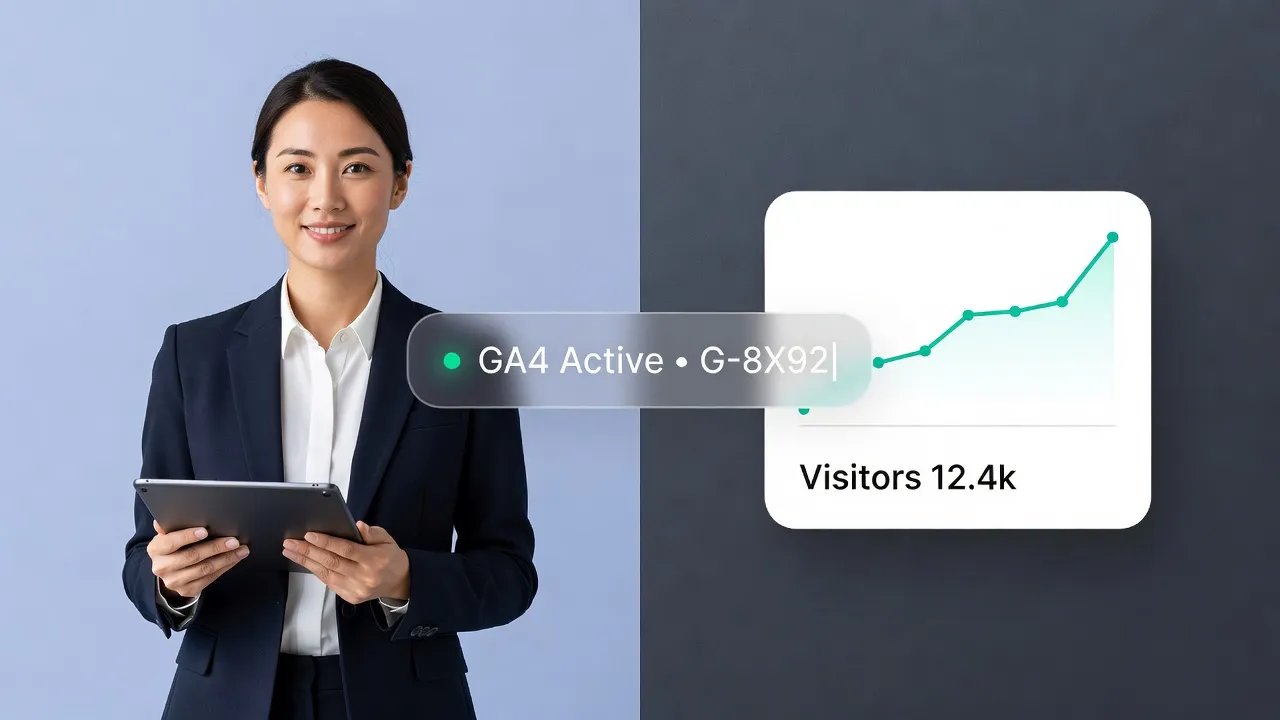
Before blaming search engine rankings, rule out technical analytics failures. It is remarkably common for a site's traffic graph to flatline simply because a tracking tag was accidentally disconnected. Diagnostic steps inside GA4:
- Test Live Events: Open an incognito browser window, land on your site, and check the GA4 Realtime Report. If your visit doesn't show up, your tracking script is broken.
- Inspect Code Tags: Check if a recent theme update or developer edit stripped your measurement ID snippet (learn how to verify your website analytics installation).
- Audit Cookie Consent Banners: Verify if a cookie banner update is blocking script execution before users consent.
Rule out a Google Analytics traffic drop or a GA4 traffic drop by systematically eliminating GA4 tracking issues.
4. Use Google Search Console to Identify Lost Search Traffic
If your tracking script is firing perfectly, your next step is to inspect Google Search Console (GSC) to isolate organic search traffic losses. Navigate to the Performance Report inside GSC and compare the 28-day period after the drop against the 28-day period before:
- Loss of Impressions + Clicks: Google stopped displaying your site in search results (indicates indexing, canonical, or manual penalty issues).
- Flat Impressions + Loss of Clicks: Your site still appears in search results, but your ranking position dropped or a new search feature is stealing user attention.
Review the official Google Search Console: Performance report documentation to cross-reference impression trends. Isolating a Google Search Console traffic drop clarifies whether you're facing an organic traffic drop or a broader search traffic decline (pair with the Google Search Console guide for small businesses).
Build on Bulletproof Infrastructure with BoltWeb
Instant Drop Detection Powered by AI Foundry
Stop flying blind when your traffic shifts. Launch your business on BoltWeb, attach your custom domain, and leverage native Google Search Console integrations. BoltWeb's built-in AI Foundry automatically monitors indexing, alerts you to traffic drops, and recommends immediate fixes.
5. Find Out Whether Specific Pages or Keywords Lost Traffic
A sitewide traffic drop requires a completely different fix than a localized drop affecting just one blog post. To isolate where the loss occurred:
- Open GSC and click the Pages tab. Sort by Click Difference to highlight URLs with the largest absolute losses (learn to compare traffic across your most valuable pages).
- Click on the affected URL, switch to the Queries tab, and identify which search terms lost rankings.
| Drop Pattern | Diagnostic Diagnosis |
|---|---|
| 1 Page Lost 90% Traffic | Deindexed URL, broken redirect, or URL slug change. |
| Entire Category Lost Traffic | Technical taxonomy issue or search intent shift. |
| Every Page Lost 20% Traffic | Sitewide algorithm update or domain-level penalty. |
Pinpointing website pages losing traffic prevents a single keyword ranking drop from causing unneeded sitewide rewrites after an organic traffic loss.

6. Check Whether Google Algorithm Updates or Search Changes Affected Your Website
Google rolls out thousands of subtle ranking adjustments alongside major Core Updates every year. When a major update lands:
- Cross-Reference Dates: Match the exact day your traffic began dropping against official Google Search Central update announcements.
- Audit Intent Shifts: Google may have re-interpreted query intent, preferring transactional pricing pages over long-form informational articles.
- Check AI Overview Placements: Google may have added interactive search features above organic search listings, absorbing user clicks.
Evaluating a Google algorithm update traffic drop helps explain a Google ranking drop so you can fix an SEO traffic loss (also see why your website isn't showing on Google).
7. Inspect Technical SEO Problems That Can Remove Search Visibility
A single accidental click in your CMS settings can render your entire storefront invisible to search crawlers overnight. Inspect these primary technical SEO friction points:
- Accidental noindex Directives: Verify that a developer didn't deploy a page header tag containing
<meta name="robots" content="noindex">. - Robots.txt Blockers: Check your yourdomain.com/robots.txt file to ensure vital directories aren't disallowed from crawling.
- Broken Canonical Tags: Ensure your canonical links point directly to the live page URL rather than a staging environment.
- Server Errors (5xx): Check whether server outages prevented Googlebot from completing page crawls.
Diagnosing a technical SEO traffic drop prevents accidental website deindexing, resolves indexing problems, and fixes crawl errors (also see how to check if your website is indexed).
8. Check Whether Backlinks, Content Changes, or Lost Rankings Explain the Decline
If your technical infrastructure is sound, your drop might stem from changes to your content or backlink profile. Common causes to investigate:
- Lost High-Authority Links: A major industry directory or news site removed a link pointing to your core service page.
- Unintentional Content Deletions: A recent page rewrite accidentally removed key subheadings, schema markup, or target search terms.
- Competitor Improvements: A competing business published a superior, faster, more complete resource that displaced your ranking position.
Reviewing a lost backlinks traffic drop or a content update traffic decline explains why website rankings dropped (also see internal linking strategy for small business SEO).
9. Check Other Traffic Sources Before Blaming SEO
It is easy to blame Google for every traffic dip, but your missing visitors might have come from another acquisition channel altogether. Cross-reference all acquisition channels:
- Paid Search / Paid Social: Did a credit card expire on your ad account, pausing your active ad groups?
- Email Marketing: Did a recurring automated email workflow break or land in spam folders?
- Referral Traffic: Did an external blog or partner website remove your referral link?
Inspect your entry channels (see how to identify which channels send visitors) to see if your website traffic sources dropped. This helps isolate a referral traffic drop, a direct traffic decline, or a social traffic drop.
10. Rule Out Seasonality, Demand Changes, and Competitor Activity
Sometimes, a traffic drop has nothing to do with your website's performance—people have simply temporarily stopped searching for your service. Market demand variables to evaluate:
- Holiday & Weekend Shifts: B2B search queries naturally drop during weekends and national holidays.
- Seasonal Demand Shifts: Swimming pool services peak in May and drop in November.
- Macro Search Volume: Check keyword trend metrics inside Google Trends to see if overall search volume declined nationwide.
Accounting for a seasonal website traffic decline isolates a true search demand decrease from shifts in competitor website traffic (combine with the core metrics every small business should monitor).
11. Create a Recovery Plan Based on the Cause of the Traffic Drop
Once you have identified the root cause of your traffic drop, resist the temptation to change everything at once. Executing systematic, prioritized fixes ensures you can measure what actually restored your traffic. Follow this 4-step recovery sequence:
- Fix Critical Technical Blockers Immediately: Remove accidental noindex tags, fix broken robots.txt files, and resolve 5xx server errors.
- Restore Tracking Tags: Reconnect missing GA4 container scripts or consent listeners.
- Update & Re-Optimize Content: Refresh outdated data, improve headline clarity, and strengthen internal linking.
- Re-Submit URLs for Crawling: Use Search Console to request indexing for repaired pages (review official guidance in the Google Search Console: Reports and acquisition analysis documentation).
Executing a plan to recover lost website traffic allows you to fix website traffic drop issues and restore organic traffic (also see how to fix redirect chains for SEO and fixing 404 errors on your website).
12. Monitor Website Traffic Until You Know the Problem Is Resolved
Recovering from a traffic drop takes time. Search engines must recrawl your updated pages, re-evaluate content signals, and adjust index placements. Your ongoing recovery routine:
- Annotate Your Fixes: Record the exact date you deployed technical changes in your tracking logs.
- Monitor Crawl Activity: Verify that Googlebot is actively recrawling your updated sitemap.
- Track Recovery Metrics: Compare weekly click totals against your pre-drop baseline (learn how to choose the website performance numbers worth monitoring).
- Separate Traffic from Revenue: Ensure your high-intent landing pages are still generating leads, even while top-of-funnel blog traffic recovers (learn to investigate pages that attract visitors but fail to generate action).
Learning how to monitor website traffic ensures smooth website traffic recovery as you track organic traffic back to baseline growth (combine with our complete guide to tracking website conversions with GA4).

Never Lose Traffic to Technical Errors Again With BoltWeb
Diagnosing sudden traffic drops, fixing broken sitemaps, and recovering lost search rankings shouldn't require hiring an expensive SEO agency. When you publish your digital storefront on BoltWeb, your site runs on an enterprise-grade infrastructure engineered for speed, security, and search visibility from day one.
Whether you run a local contracting company, a professional advisory firm, or an online storefront, BoltWeb delivers clean code architectures, auto-submits XML sitemaps, formats responsive mobile headers, and guards your business with AI Foundry analytics.
Frequently Asked Questions: Diagnosing and Fixing a Sudden Traffic Drop
1. My website traffic fell off a cliff overnight. Is my business in serious trouble or did something just break?
Here is the plain truth: Before you panic and start rewriting every page on your site, take a deep breath. A sudden traffic collapse is almost always a diagnostic puzzle with a technical trigger, not an instant death sentence for your brand. When your daily numbers plummet out of nowhere, you need to isolate whether you have a technical tracking break, an indexing issue, or a true organic visibility loss. Getting a clear answer requires running a methodical website traffic analysis to pinpoint what changed. If you are tired of guessing why your traffic fluctuates, switching your web stack to BoltWeb gives you immediate clarity. As an all-in-one business website builder, BoltWeb includes an integrated AI Foundry workspace that monitors your traffic health, syncs directly with Google Search Console, and instantly alerts you to technical drops so you can scale your business without unexpected traffic surprises!
2. How do I double-check whether this traffic crash is real or just a glitch in Google Analytics?
Look at it this way: Analytics scripts break all the time during routine server updates, plugin installs, or code changes. To confirm an actual sudden decrease in website traffic:
- Open GA4 Realtime Reports: Open your site in an incognito window and check if your own visit registers. If nothing appears, your tracking snippet was stripped.
- Compare Like-for-Like Dates: Compare Tuesday through Thursday of this week against the exact same days last week to eliminate normal weekend dips.
- Check Multiple Traffic Channels: Determine if traffic vanished across all sources (Direct, Paid, Social) or strictly from organic search results.
Rule out a technical Google Analytics traffic drop by investigating GA4 tracking issues before making unneeded page edits (see how to verify your website analytics installation).
3. Did Google silently deindex my pages, or are people just clicking on my search results less often?
The fastest way to separate indexing problems from click-through drops is to open your Google Search Console account immediately. Navigate to your performance reports and look at your primary graphs:
- Impressions and Clicks Both Plummet: Google stopped displaying your site in search results entirely (indicates crawling blocks, noindex tags, or manual penalties).
- Impressions Stay High, But Clicks Drop: Your pages still rank on search screens, but users are clicking competitors or new AI search overlays instead.
Isolating a Google Search Console traffic drop tells you whether you're facing a site-wide organic traffic drop or an isolated search traffic decline (review official performance reporting steps inside the Google Search Console guide for small businesses).
4. Which specific landing pages or search terms caused my traffic to collapse?
Here is a major mistake many business owners make: assuming a traffic drop is happening equally across every single URL on their domain. To locate the exact source of your loss: Open Search Console, go to the Pages tab, and set date ranges to compare the period before and after the drop. Sort your performance table by Click Difference to highlight the exact URLs that lost the most visitors (learn how to compare traffic across your most valuable pages). Click on the affected URL and check the Queries tab to spot specific keyword ranking drops. Pinpointing website pages losing traffic isolates a localized keyword ranking drop from a broader organic traffic loss.
5. "Did a new Google algorithm update destroy my search rankings?"
Google rolls out thousands of subtle ranking adjustments alongside major Core Updates every year, and the timing of a drop often points right to an official update window. How to investigate update impacts:
- Match Timeline Dates: Cross-reference the exact date your traffic fell against official Google Search Central update announcements.
- Audit Intent Changes: See if Google updated its intent model to favor quick pricing tables over long-form informational blog posts.
- Inspect Search Page Features: Check if new video blocks, local map packs, or visual cards pushed your organic link down the fold.
Evaluating a Google algorithm update traffic drop helps explain a Google ranking drop so you can plan an effective SEO traffic loss recovery strategy (also see why your website isn't showing on Google).
6. Could a simple developer error or plugin update accidentally hide my site from Google?
Yes! A single misconfigured setting can hide your entire storefront from search engine crawlers in a matter of seconds. Four critical technical SEO issues to audit immediately: Accidental noindex Tags: Check your page source code to ensure someone didn't leave <meta name="robots" content="noindex"> active after staging. Robots.txt Crawl Blocks: Open yourdomain.com/robots.txt to verify essential directories aren't disallowed from web crawlers. Broken Canonical Directives: Ensure your canonical tags point to live URLs rather than old staging links. Server Timeouts (5xx Errors): Check if server outages prevented search bots from rendering your layouts. Fixing a technical SEO traffic drop resolves accidental website deindexing, eliminates indexing problems, and fixes crawl errors. Building on BoltWeb prevents these technical headaches altogether, because clean sitemaps and proper indexing tags are auto-generated natively within your dashboard (also see how to check if your website is indexed)!
7. Why did my visitor numbers drop if my organic search rankings look completely stable?
Don't fall into the trap of blaming Google Search for every single traffic dip on your dashboard. Your missing traffic might have come from another marketing channel: Paid Advertising Pauses: An expired credit card or paused ad group stopped your Google Ads or paid social campaigns. Broken Email Workflows: An automated welcome sequence or newsletter link broken during a recent campaign update. Lost Referral Traffic: A partner site updated their resource page and removed your direct link. Inspect your channel acquisition reports (see how to identify which channels send visitors) to determine if your website traffic sources dropped, causing a referral traffic drop, direct traffic decline, or social traffic drop.
8. Is my website losing visibility, or are fewer people searching for what I sell right now?
Sometimes a traffic drop has nothing to do with your site's quality—people have simply temporarily stopped searching for your services. Evaluate these market demand signals: Holiday & Weekend Dips: B2B search queries naturally drop during weekends and national holidays. Seasonal Demand Cycles: Outdoor services peak in summer and drop significantly during winter months. Macro Market Demand: Use Google Trends to check if nationwide search interest for your industry has declined. Differentiating a seasonal website traffic decline from a search demand decrease helps you judge competitor website traffic shifts in proper market context (combine with analyzing website traffic reports).
9. I found the root cause of my traffic drop—what exact steps should I take to fix it first?
When recovering from a traffic loss, changing everything on your site at once makes it impossible to tell what actually solved the problem. Follow this 4-step prioritized recovery sequence: Fix Critical Indexing & Server Errors: Remove accidental noindex tags and fix server timeout bugs immediately. Restore Broken Analytics Tags: Reconnect missing tracking scripts and consent banner listeners (learn to verify your website analytics installation). Re-Optimize Affected Content: Refresh outdated stats, fix broken headers, and strengthen internal linking. Request Recrawling: Use Search Console to request indexing for fixed URLs (review setup steps inside the Google Search Console guide for small businesses). Executing a systematic plan to recover lost website traffic fixes your website traffic drop and restores organic traffic (also see how to fix redirect chains for SEO).
10. How long will it take for Google to restore my search rankings and traffic levels?
Here is the honest reality: Organic recovery is rarely instantaneous. Even after you fix technical bugs, Google's crawlers need time to rediscover your pages, re-evaluate your content signals, and update search index placements. What to expect during recovery: Technical Fixes (1 to 2 Weeks): Indexing fixes and noindex removals usually resolve as soon as Googlebot recrawls your sitemap. Algorithm & Content Updates (4 to 8 Weeks): Ranking adjustments often require several weeks or a subsequent core quality update to re-evaluate your site. Using BoltWeb accelerates this timeline, as every published page automatically updates your XML sitemap and pushes fresh URLs directly to search crawlers for rapid indexing!
11. How can I set up my website so I never suffer an undetected traffic crash again?
Checking your analytics property once a month leaves you vulnerable to hidden technical errors that burn potential revenue for weeks. Set up this simple monthly monitoring routine: Set Up Automated Traffic Alerts: Configure custom notifications in your dashboard to flag traffic drops larger than 20%. Track Organic Search Clicks: Review weekly click trends to catch keyword ranking shifts early (learn how to choose the website performance numbers worth monitoring). Audit Key Lead Pages: Ensure high-intent landing pages continue converting visitors into leads (see how to investigate pages that attract visitors but fail to generate action). Learning how to monitor website traffic ensures smooth website traffic recovery as you track organic traffic back to steady business growth on BoltWeb (also see our complete guide to tracking website conversions with GA4).