
Connecting a newly purchased domain to a website shouldn't feel like deciphering code.
You bought a domain from Namecheap, GoDaddy, Google Domains, or Wix, and you have your website ready to go. Yet, when you type your web address into a browser, all you see is an error screen or a generic "Parked Domain" placeholder.
Disconnects between domain registrars, web hosting, and DNS settings can stall your launch and leave potential buyers stranded.
Connecting a custom domain manually used to require navigating confusing control panels, wrestling with nameservers, and praying you didn't accidentally delete your business email settings.
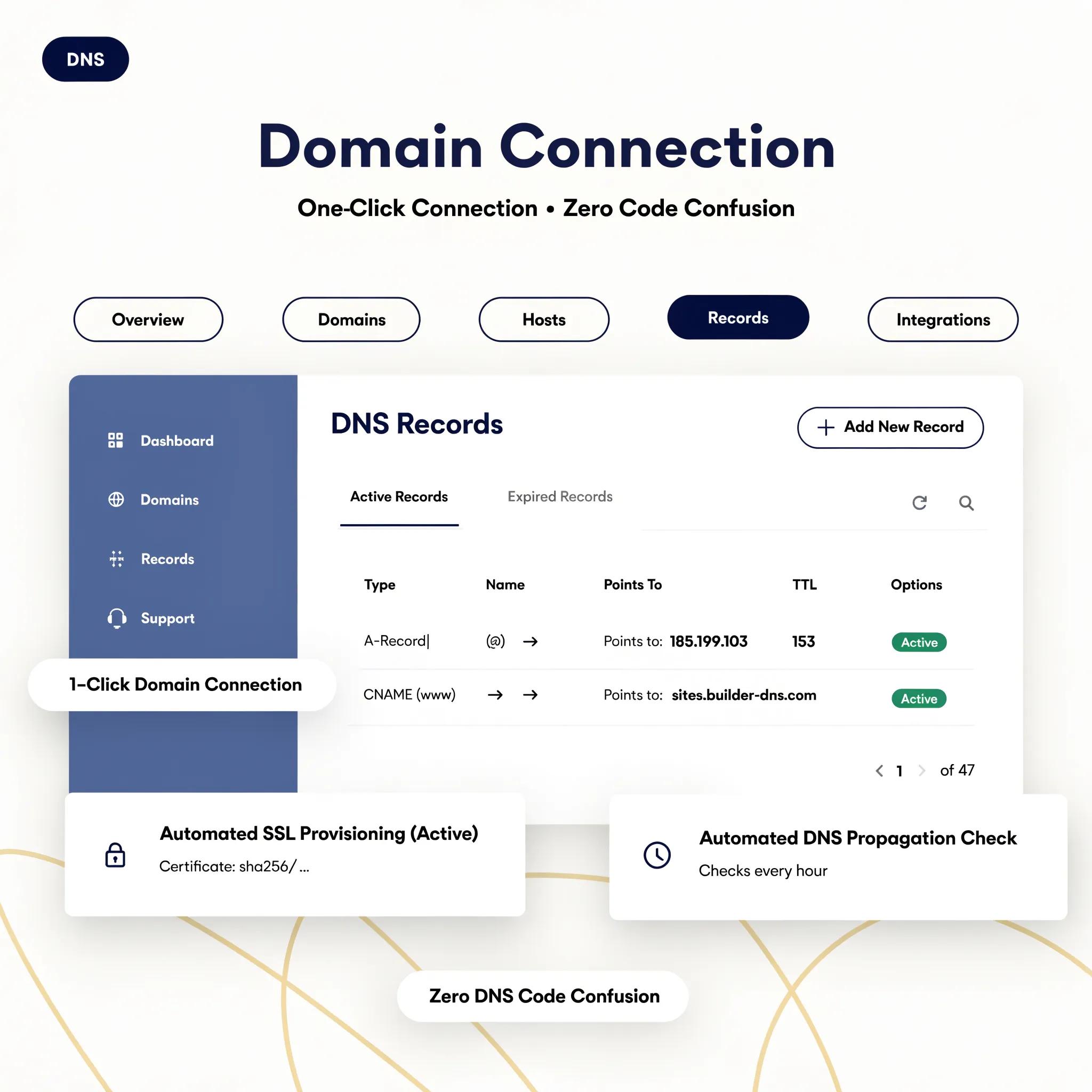
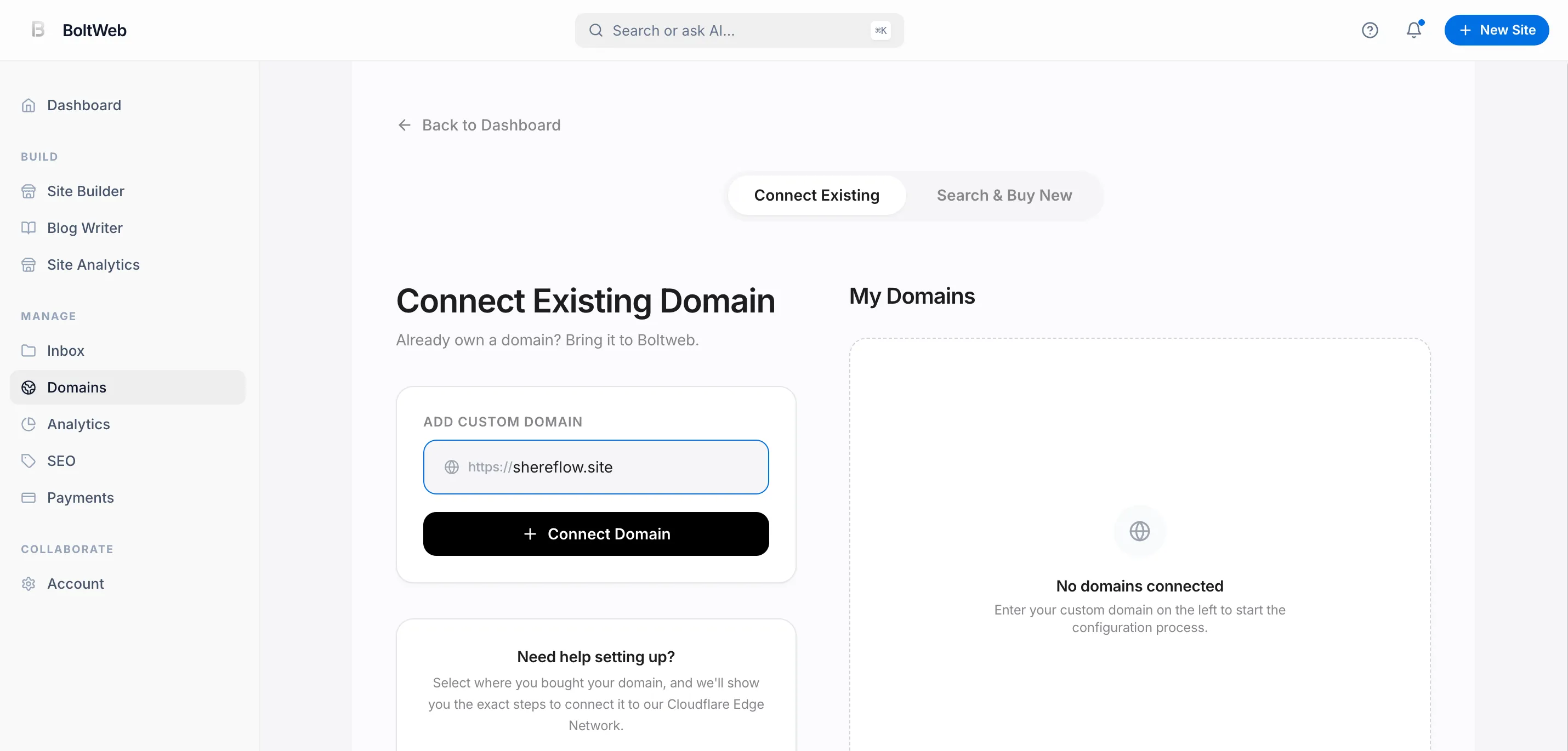
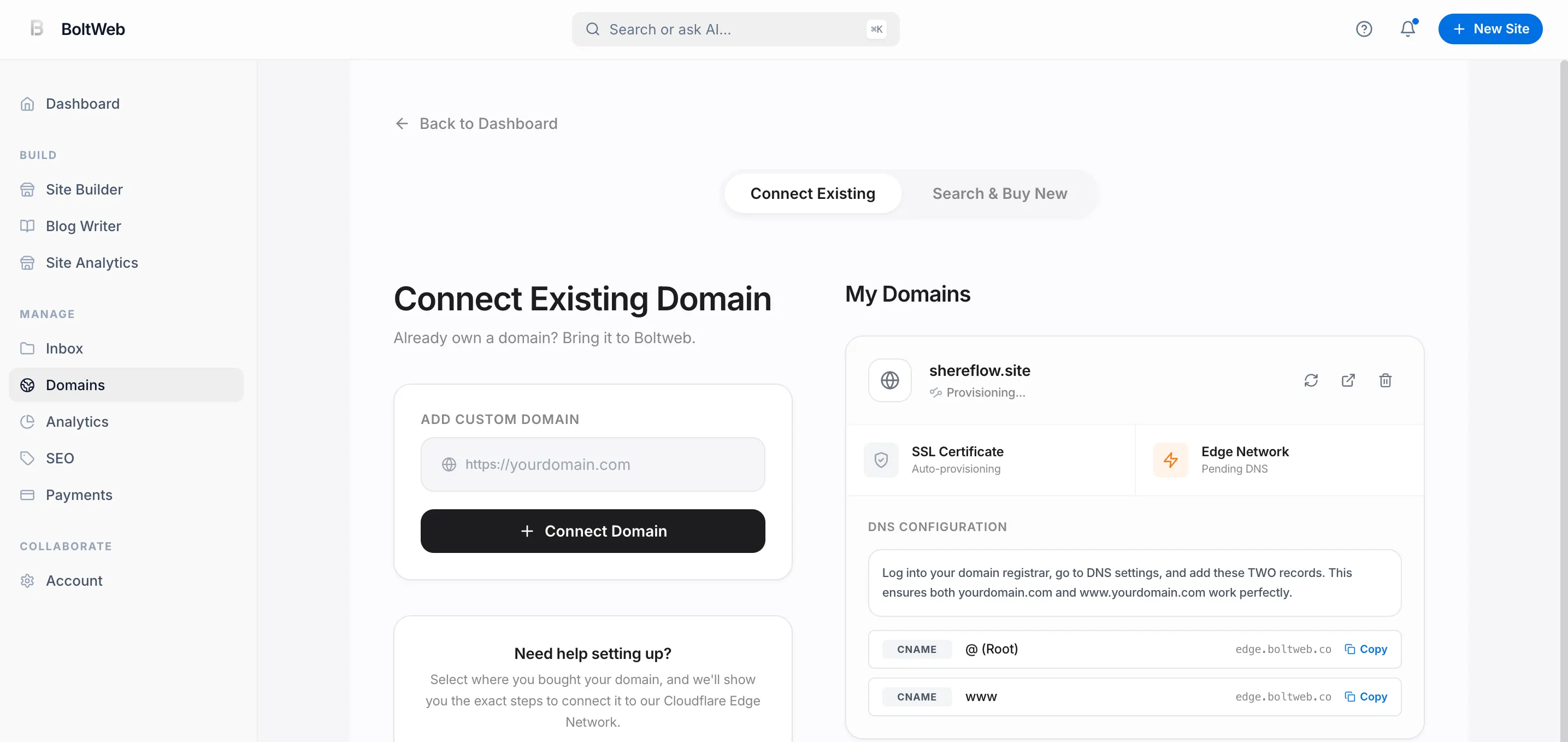
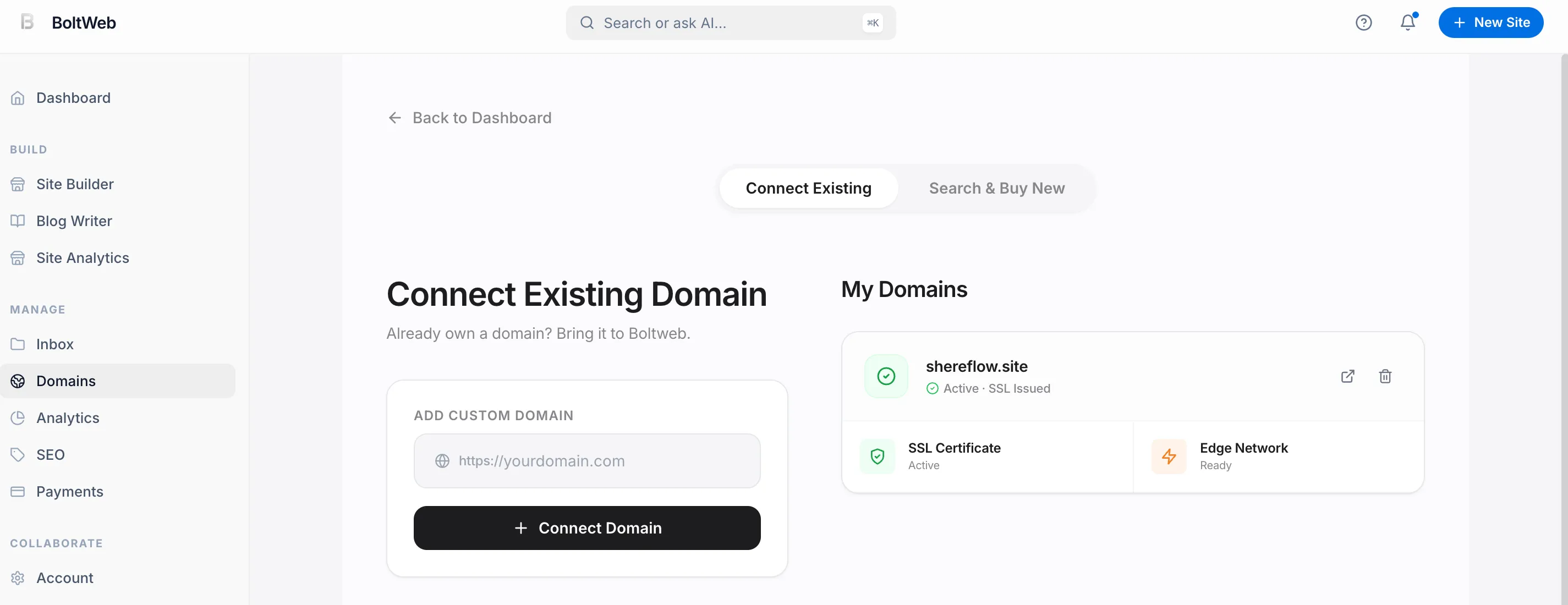
Modern platforms have stripped away this technical frustration entirely. When you build your digital presence on BoltWeb, custom domain setup takes less than two minutes. Inside the BoltWeb dashboard, simply navigate to the Domains section, click Add Domain, and enter your web address.
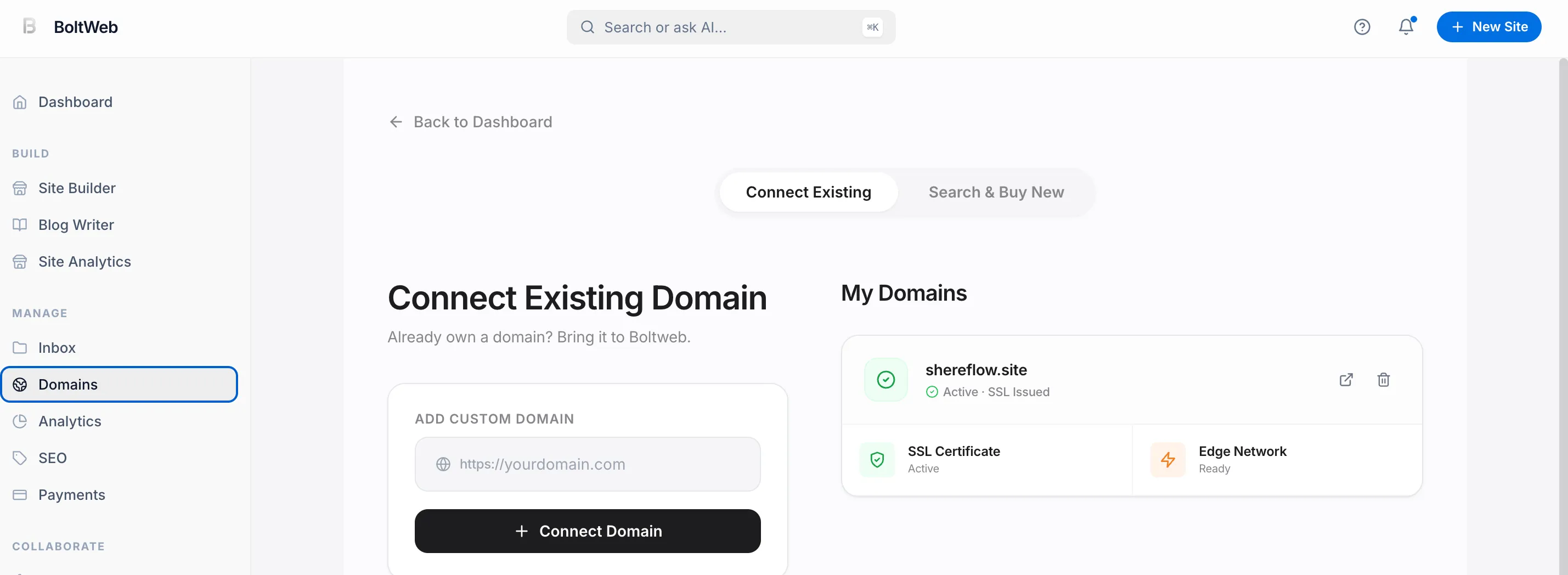
BoltWeb instantly generates a simple two-line DNS configuration. You just copy those two records, paste them into your domain provider's DNS management panel, and save the changes. Once saved, BoltWeb auto-refreshes the connection—displaying a green confirmation status the moment your domain goes live!
Here is your complete, step-by-step operational guide to connecting your custom domain quickly, safely, and seamlessly.
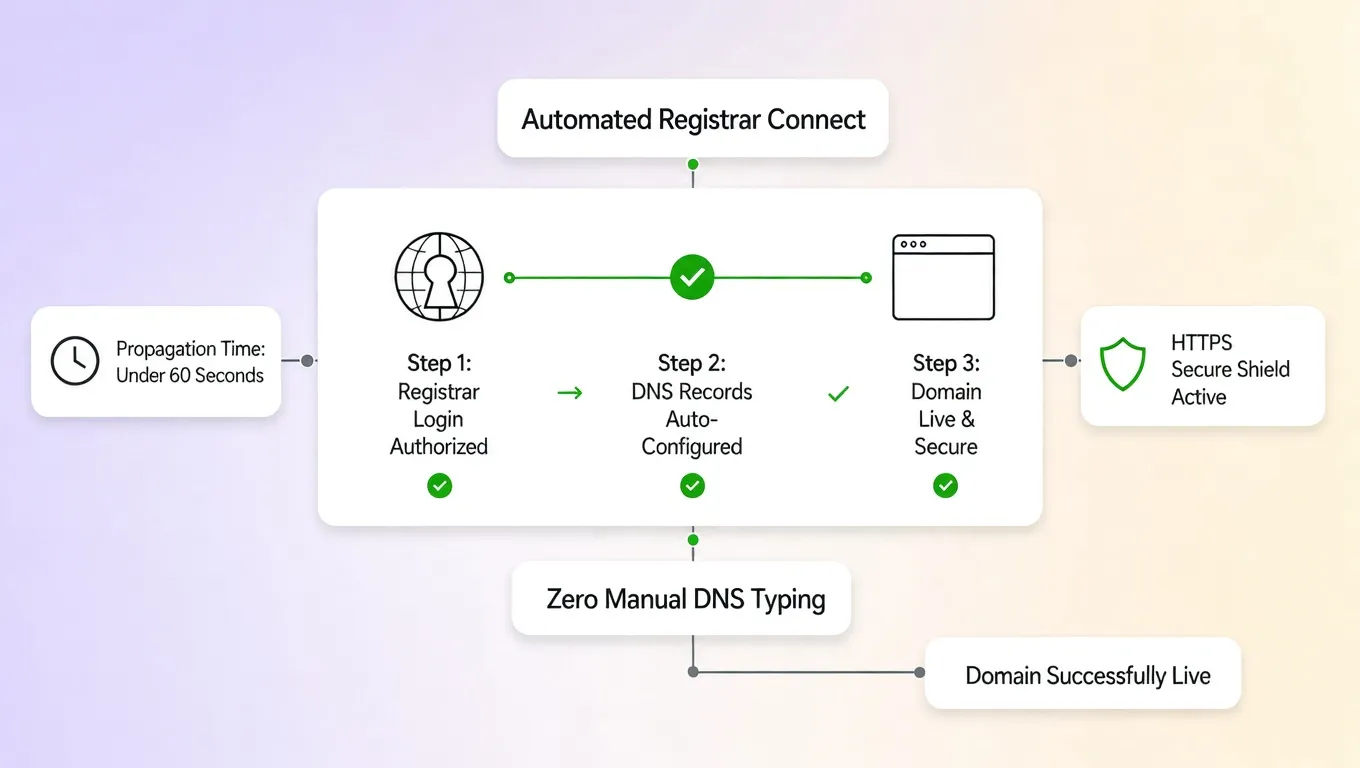
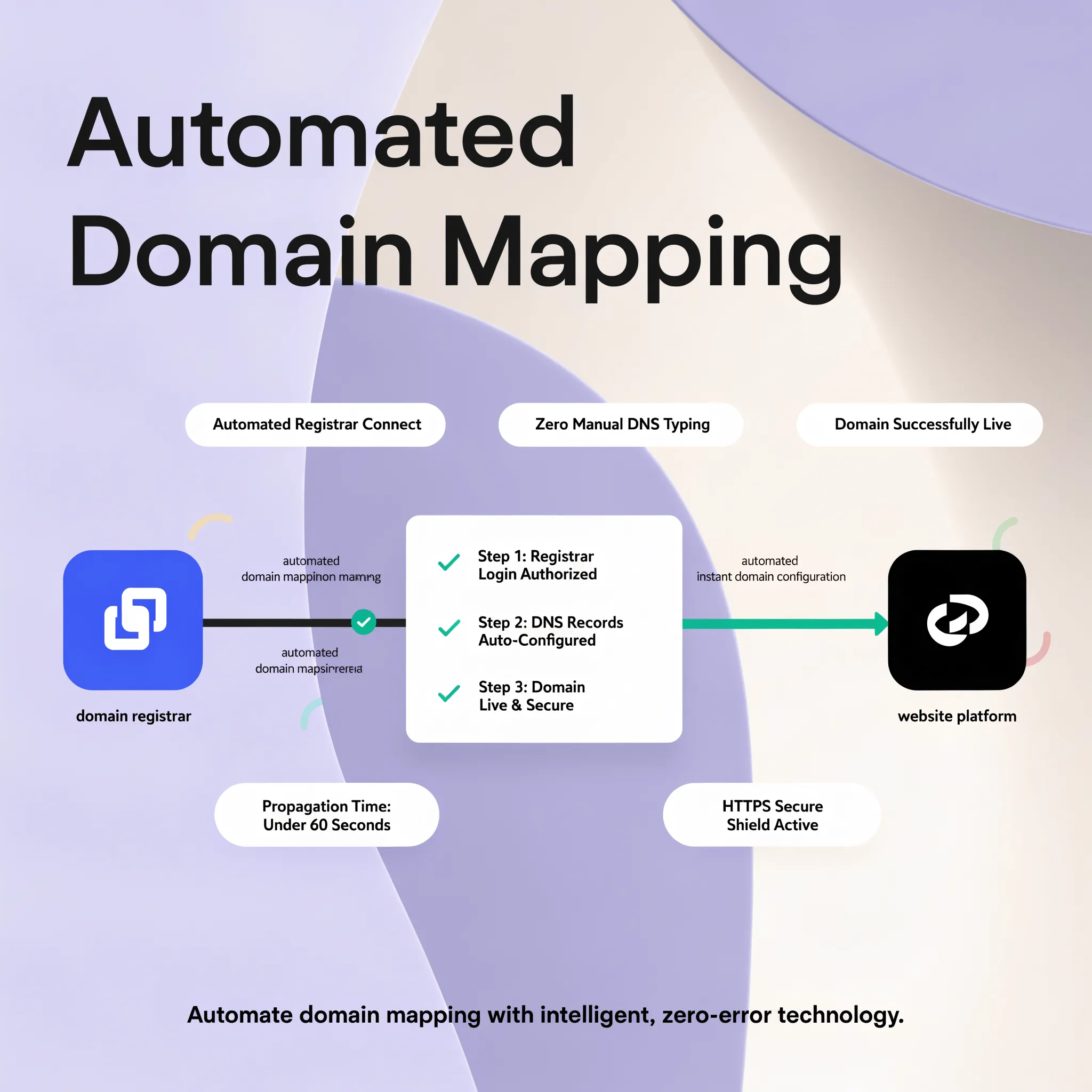
The Master Domain Connection Map
| Setup Step | Primary Goal | Critical Action |
|---|---|---|
| 1. Identify Roles | Map domain vs. host | Separate where your domain is registered from where your site is hosted. |
| 2. Access DNS Panel | Locate control records | Open the DNS Management section inside GoDaddy, Namecheap, or your registrar. |
| 3. Update Records | Direct web traffic | Add the precise A Record and CNAME records provided by your website builder. |
| 4. Verify Propagation | Confirm live connection | Allow time for global DNS propagation and verify active HTTPS security. |
1. Know What Needs to Connect Before You Change Any Settings
Before clicking around inside your control panels, it helps to understand how the four digital pieces fit together.
Think of your website setup like a physical office location:
- • Domain Name (Registrar) ➔ The street address people type in
- • DNS Settings ➔ The GPS navigation system directing traffic
- • Web Hosting (Platform) ➔ The actual building physical structure
- • Website Content ➔ The products, copy, and layout inside
When someone types your web address into a browser, the domain registrar checks your DNS settings to see which web server holds your actual website files. Learning how hosting infrastructure works helps you understand that connecting a domain to your website is simply a matter of telling your domain registrar where to send that incoming traffic.
2. Check Whether Your Website Is Already Published
A common pitfall business owners encounter is attempting to connect domain to website hosting before their site draft is published.
Ensure your prerequisite checklist is complete:
- Published Site Draft: Confirm your primary pages are live on a temporary staging URL provided by your builder.
- Active Platform Account: Ensure your hosting subscription or platform account is fully active.
Establishing these baseline steps prevents wasted effort troubleshooting dead connections when attempting to publish a website with a custom domain. For a full pre-launch protocol, review our website launch checklist.
3. Find Out Where Your Domain and Website Are Managed
Not at all. In fact, millions of businesses keep their domain registrar vs web host accounts separate.
Identify your current administrative dashboards:
- The Domain Registrar: The service where you purchased your domain name (e.g., Namecheap, GoDaddy, Wix, or Google Domains). This is where you edit DNS settings.
- The Web Host / Builder: The platform where your pages are designed and stored (such as BoltWeb). This is where you grab your target connection records.
Understanding your exact domain and website hosting setup allows you to connect domain from another provider without confusion. For guidance on selecting the right name before connection, read our guide on choosing a domain name for your business.
4. Choose Between Nameservers and DNS Records
When linking your address, you generally have two connection pathways:
- • Keeps DNS at registrar
- • Protects third-party email
- • Recommended for most sites
- • Hands full DNS control to
- your web hosting platform
- • Requires re-linking email
For most small business owners, adding an A record for website routing alongside a CNAME record is the safest path. It directs website traffic to your builder while keeping existing domain services (like custom business email) untouched. Knowing how to change nameservers versus modifying DNS records for website routing gives you complete control over your domain setup. For a deeper comparison of infrastructure options, read our article on hosted versus self-hosted website platforms.
5. Connect Your Domain Using Your Website Builder's Instructions
Never guess record values or copy settings from outdated online forums. Always grab the exact connection keys generated inside your current builder account.
Follow this streamlined workflow when using BoltWeb:
- Log into your dashboard and navigate to the Domain settings tab.
- Type in your custom web address and click Add Domain.
- Copy the short, two-line custom domain setup values provided directly on your screen.
Using explicit platform instructions eliminates syntax errors and speeds up your connect domain to website builder process.
6. Add or Update the DNS Records Your Website Requires
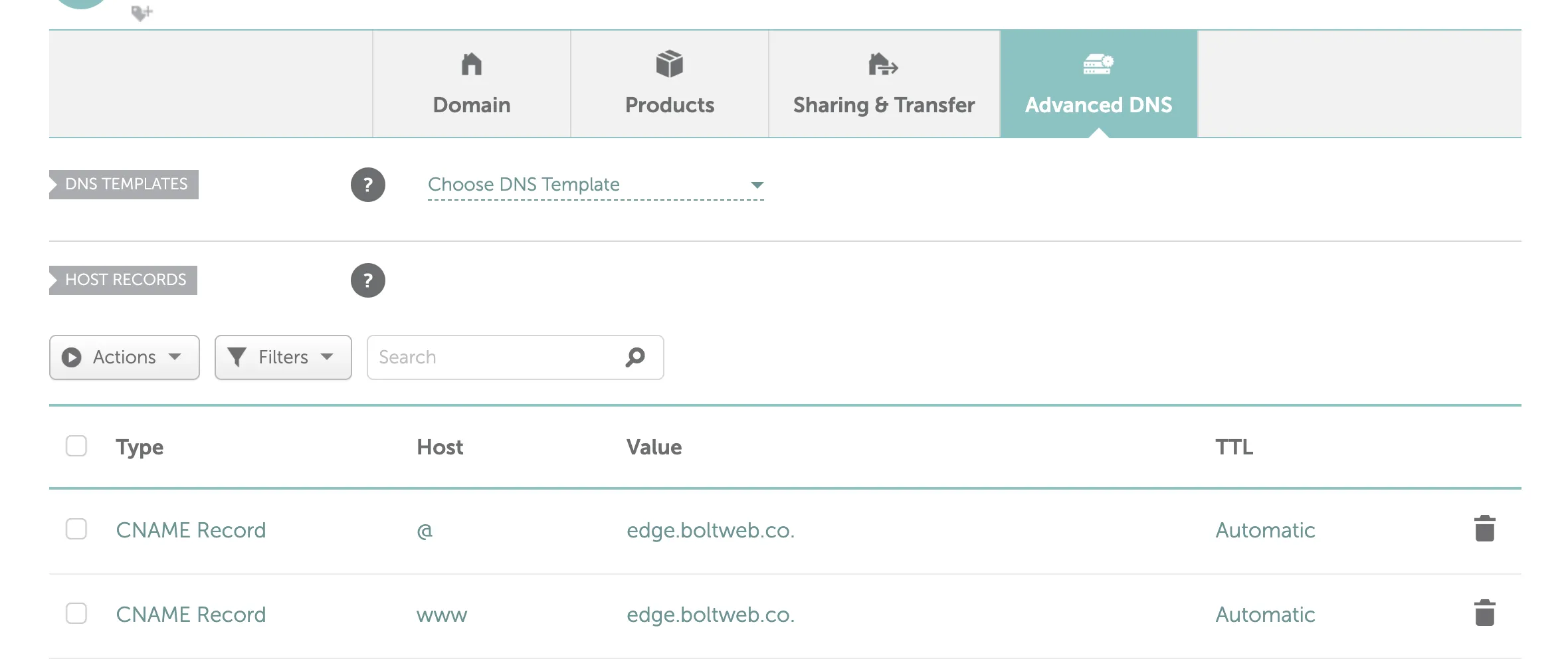
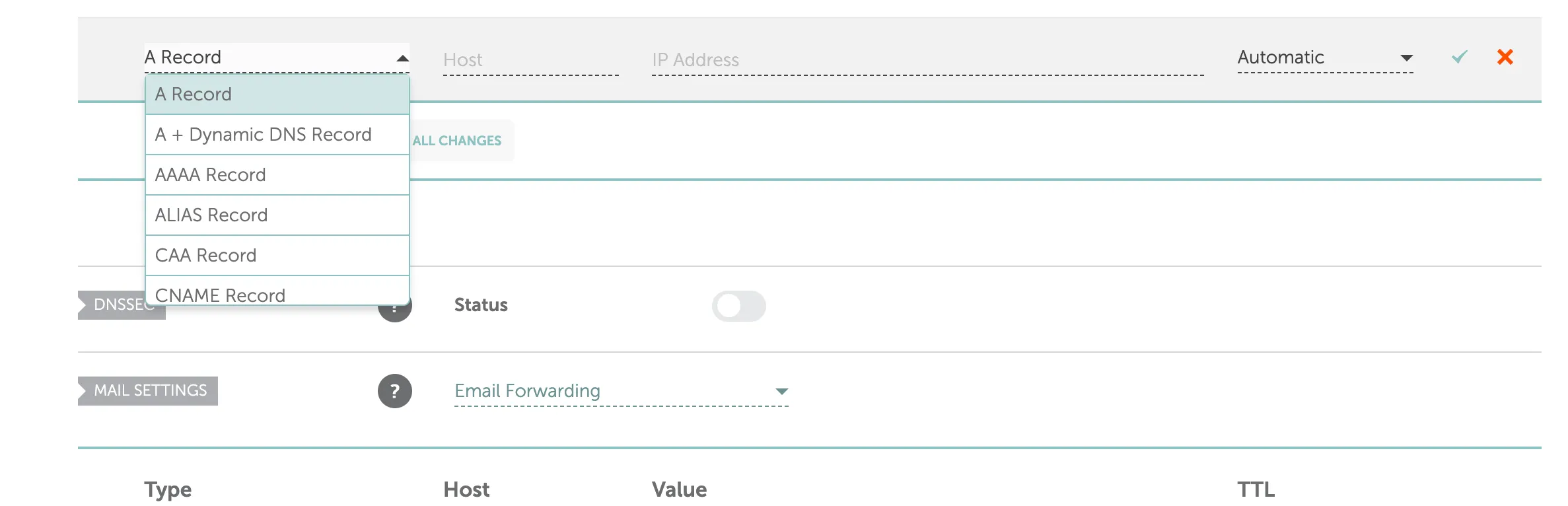
Log into your domain registrar dashboard (like GoDaddy or Namecheap), locate your domain's DNS Management panel, and input your new DNS settings for domain routing.
Enter the two primary records:
- A Record: Set the Host or Name to @ (which stands for your root domain) and paste the exact numeric IP address provided by your builder into the Value field.
- CNAME Record: Set the Host or Name to www and point the Value field to your builder's target destination address.
| Record Type | Host / Name | Value / Points To |
|---|---|---|
| A Record | @ | [Target IP Address from your Builder] |
| CNAME Record | www | [Target Domain Address from your Builder] |
Updating your DNS configuration correctly guarantees visitors hit your active website without landing on broken pages.
7. Connect Both the Root Domain and the www Version
If you only configure your www address, visitors who type your bare domain (yourbusiness.com) into their browser will hit an error screen.
Ensure full coverage by linking both formats:
- Root Domain: yourbusiness.com (handled via your main root domain DNS A Record).
- www Subdomain: www.yourbusiness.com (handled via your connect www domain CNAME entry).
Configuring both variations ensures every single visitor lands on your site regardless of how they type your URL (explore user experience best practices in our guide on what makes a good homepage).
8. Wait for DNS Changes—and Check Whether They Have Taken Effect
Don't panic! DNS record updates do not happen instantly. They undergo a global distribution process known as DNS propagation.
Keep these propagation facts in mind:
- Propagation Window: While platforms like BoltWeb refresh connections in minutes, global propagation can take anywhere from 15 minutes up to 24–48 hours depending on your registrar.
- Avoid Constant Modifications: Repeatedly editing records while waiting resets the propagation clock.
- Verification Tools: Use free online tools to check DNS records globally without relying on your browser's cached memory.
Understanding propagation prevents unnecessary setting tweaks when facing temporary domain not connecting to website delays. For indexing verification, read our guide on checking if your website is indexed by Google.
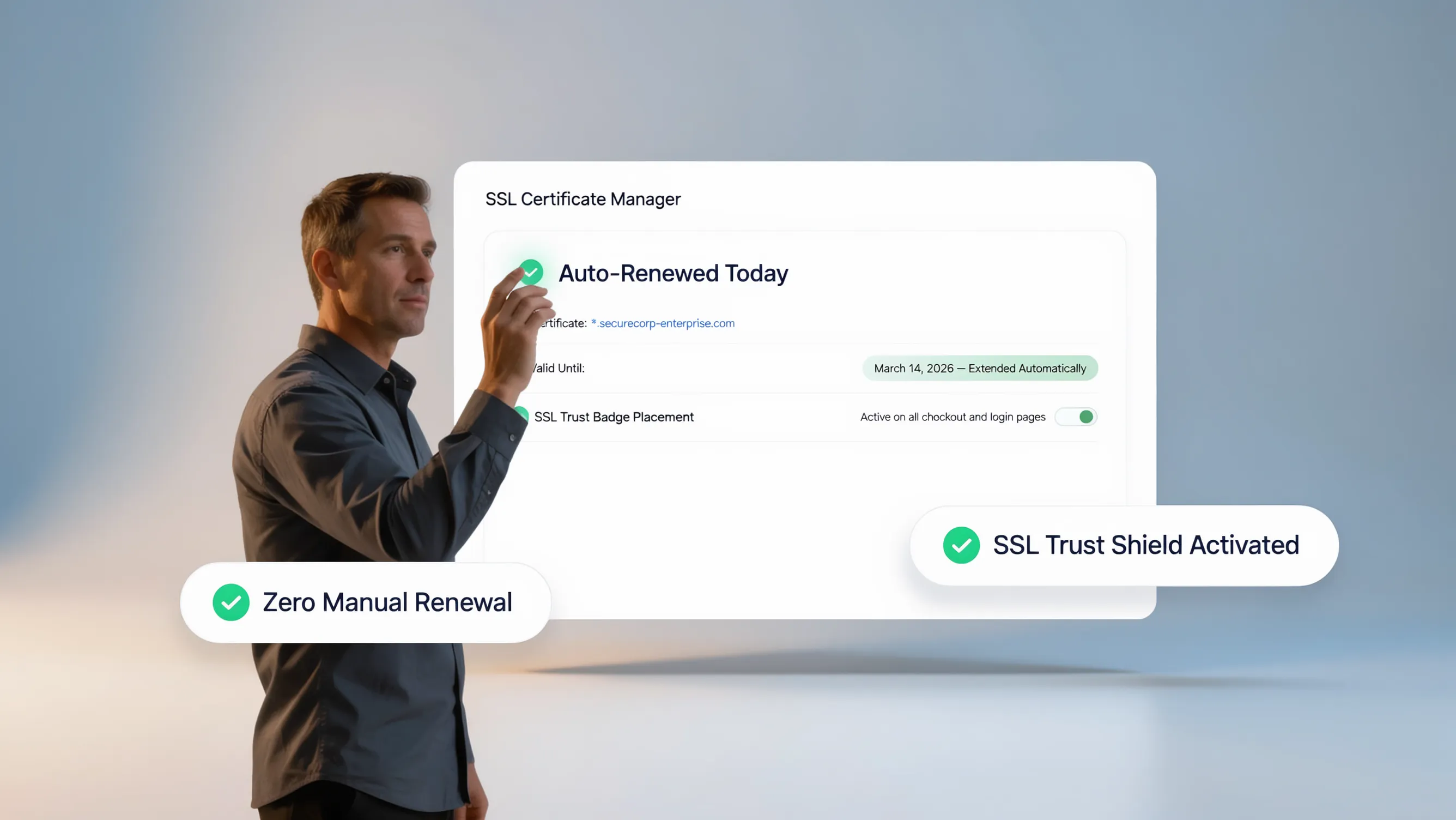
9. Set Up HTTPS Before Sending Visitors to Your Site
When visitors reach a new domain, web browsers automatically check for an active SSL certificate. If one is missing, visitors see a red "Not Secure" warning screen that scares away traffic instantly.
Ensure complete security across your domain:
- Automatic SSL Certificates: Platforms like BoltWeb issue free, automated SSL certificates the moment your DNS records verify.
- HTTPS Redirection: Confirm that all http:// traffic automatically redirects to a secure https:// connection.
Enabling an SSL certificate for website deployment secures user data and builds unshakeable visitor credibility. For deeper security guidance, read our article on adding SSL to a website.
10. Fix the Most Common Problems When a Domain Won't Connect
If your domain fails to connect after 24 hours, run through this diagnostic troubleshooting checklist:
- Conflicting A Records: Check if your domain panel still contains old A Records pointing to a previous web host or parked domain page. Delete any duplicate @ records!
- Typographical Errors: Double-check for extra spaces or missing dots in your IP addresses or CNAME targets.
- Typos in Registrar Fields: Ensure you pasted your builder's exact values into your registrar's settings.
Resolving record conflicts eliminates stubborn DNS error issues and fixes website not loading after domain connection problems quickly. For broader migration troubleshooting, read our guide on changing website hosting safely.
11. Keep Your Business Email Working While You Change DNS
"Will connecting my website domain break my business email?"
This is a massive fear for established business owners using professional Google Workspace or Microsoft Outlook email addresses.
Protect your business communications during setup:
- • LEAVE UNTOUCHED ➔ Do NOT delete or modify MX Records
- • LEAVE UNTOUCHED ➔ Do NOT alter TXT records containing SPF or DKIM
- • ONLY UPDATE ➔ Modify A Records (@) and CNAME Records (www) only
Preserving your domain email DNS records and MX records ensures your business inbox remains fully operational while your new site goes live. For comprehensive security guidance, review our article on strengthening website security.
12. Confirm the Website Works and Make the Domain Ready for Customers
Once your DNS updates process, your builder dashboard will display a green confirmation status indicating your custom domain is live and secure.
Run through your final pre-launch launch check:
- [ ] Test Both Domain Formats: Type both yourbusiness.com and www.yourbusiness.com into a browser to verify seamless loading.
- [ ] Verify Security Badges: Confirm the padlock icon appears beside your URL in browser address bars.
- [ ] Mobile Usability Audit: Load your site on a mobile device to test tap-to-call headers and contact forms (see optimization tips in why are people leaving my website).
Launch Your Custom Domain in Seconds: Stop wrestling with complex code, confusing nameservers, and hidden developer fees. Build your search-optimized, high-converting storefront on BoltWeb today—and add domain to website hosting with effortless, two-line setup in under 60 seconds! For a complete launch protocol, follow our website launch checklist.
Faq How to Connect a Domain to Your Website
1. How do I connect a domain to my website if I bought it from Namecheap, GoDaddy, or Wix?
Here's the plain truth:
Learning how to connect a domain to your website doesn't require hiring an expensive IT specialist or struggling through endless hosting menus.
Disconnects between your domain registrar, DNS settings, and web host can cause site loading errors if done incorrectly. When you deploy your site on BoltWeb, custom domain setup takes less than two minutes. Inside the BoltWeb dashboard, simply navigate to the Domains section, click Add Domain, enter your web address, and paste the short two-line DNS configuration into your registrar panel to connect domain to website hosting seamlessly.
2. Should I build my site before attempting to connect domain to a website?
A common mistake business owners make is trying to map a custom domain before their site structure or page draft is published.
Apply the Job-to-Be-Done (JTBD) prerequisite checklist:
- Published Site Draft: Confirm your core service pages and contact forms are published on a temporary staging link provided by your builder.
- Active Platform Account: Ensure your hosting subscription or builder account is live and ready to receive traffic.
Establishing these baseline prerequisites ensures you don't waste time troubleshooting dead connections when attempting to publish a website with a custom domain. For site-building guidance, read our complete guide on building a website.
3. What is the difference between a domain registrar vs web host when managing a domain?
Many business owners purchase their domain name from one company (like GoDaddy, Namecheap, or Wix) while hosting their actual site on an intelligent builder platform like BoltWeb.
Understanding your administrative control panels:
- The Domain Registrar: The provider where you bought your web address (e.g., Namecheap or GoDaddy). This is where you manage DNS settings.
- The Web Host / Builder: The server where your pages live (BoltWeb). This is where you grab your target DNS connection records.
Understanding your domain and website hosting setup allows you to connect domain from another provider without confusion. For more on hosting fundamentals, read our guide on what website hosting actually is.
4. Should I change nameservers or add DNS records to connect my domain?
When linking your custom web address, you generally have two primary setup options:
- DNS Records (A Record + CNAME): Keeps your DNS management at your current registrar, pointing web traffic to your site while protecting existing business email accounts (like Google Workspace).
- Changing Nameservers: Transfers total DNS management over to your web host server.
For most small business owners, choosing to connect domain using DNS records (A Record and CNAME) is the safest method. Knowing when to change nameservers versus updating DNS records for website routing gives you total control over your setup.
5. Where do I find the instructions to connect domain to website builder platforms?
Never guess record values or copy settings from random online forums, as DNS requirements are specific to your web hosting builder.
Follow this streamlined workflow inside BoltWeb:
- Log into your dashboard and navigate to the Domain settings tab.
- Click Add Domain and enter your custom web address.
- Copy the simple two-line record values generated on your screen.
Following clear platform instructions simplifies your connect domain to website builder process and ensures a seamless custom domain setup when you add domain to website hosting.
6. What exact A Record and CNAME record settings do I need to enter in my DNS panel?
Log into your domain registrar dashboard (like GoDaddy, Namecheap, or Wix), open your domain's DNS Management panel, and configure two primary records:
- A Record for Website: Set the Host or Name field to @ (representing your root domain) and paste the exact numeric IP address provided by your builder into the Value field.
- CNAME Record: Set the Host field to www and point the Value field to the target address provided by your builder.
Configuring your DNS settings for domain routing correctly guarantees incoming visitors land on your active website pages.
7. How do I connect www domain and root domain settings so both versions load?
If you only configure your www address, prospective clients who type your bare domain name (yourbusiness.com) into their web browser will hit a frustrating broken error screen.
Ensure complete coverage across both address formats:
- Root Domain DNS: Handles yourbusiness.com via your main A Record.
- Connect WWW Domain: Handles www.yourbusiness.com via your CNAME entry.
Linking both variations ensures every single prospect reaches your storefront regardless of how they type your URL in www vs non-www domain setups. For navigation guidance, read our article on website navigation best practices.
8. How long does DNS propagation take when my domain is not connecting to website hosting immediately?
After saving your new DNS records, your updates must distribute across global internet servers during a process known as DNS propagation.
What to keep in mind while waiting for propagation:
- Refresh Window: While BoltWeb auto-refreshes connections in minutes, global propagation can take up to 24–48 hours depending on your registrar.
- Avoid Constant Edits: Repeatedly changing settings while waiting resets the propagation timer.
Understanding propagation prevents unnecessary setting edits when facing temporary domain not connecting to website delays.
9. How do I enable HTTPS and issue an SSL certificate for website security?
When visitors land on a custom domain, web browsers automatically check for an active SSL security certificate. If missing, browsers display a red "Not Secure" warning screen that frightens away prospective buyers.
Ensure complete domain security before launch:
- Automated SSL Issuance: Platforms like BoltWeb issue free, automated SSL certificates the moment your DNS records propagate.
- HTTPS Redirection: Automatically directs unencrypted http:// traffic to a secure custom domain connection.
Knowing how to enable HTTPS on domain hosting protects buyer data and builds unshakeable client authority. For step-by-step SSL guidance, read our guide on adding SSL certificates to your website.
10. How do I troubleshoot a DNS error or a website not loading after domain connection?
If your domain fails to point to your storefront after 24 hours, follow this quick diagnostic checklist:
- Delete Old A Records: Check for conflicting, old IP addresses or parked page records inside your registrar's DNS panel and remove them.
- Inspect Syntax Typos: Ensure there are no extra spaces or missing characters in your IP addresses or CNAME target values.
- Check Nameserver Settings: Confirm your domain is set to use your registrar's default DNS management system.
Resolving record conflicts eliminates stubborn DNS error issues, fixes domain pointing to wrong website bugs, and resolves website not loading after domain connection problems.
11. Will connecting my website domain break my domain email DNS records or MX records?
This is a major fear for established business owners who rely on custom Google Workspace or Microsoft Outlook email addresses.
Protect your business communications during domain updates:
- Do NOT Delete MX Records: Leave all existing email records (MX, TXT, SPF, DKIM) untouched in your DNS panel.
- Only Edit Web Traffic Records: Modify only the primary @ A Record and www CNAME Record.
Preserving your domain email DNS records and MX records ensures your business email remains 100% active while your new storefront goes live.
12. How do I test custom domain settings before I launch website with custom domain?
Once your DNS records verify and your builder dashboard displays a green status icon, perform a final pre-launch audit:
- Test Both URL Variations: Open both yourbusiness.com and www.yourbusiness.com in a private browser window.
- Verify Padlock Icons: Confirm the secure padlock icon appears next to your web address in the browser bar.
- Audit Mobile Contact Links: Test tap-to-call mobile buttons and quote forms on a smartphone screen.
Completing this checklist allows you to test custom domain performance, verify your website domain setup, and confidently launch your website with custom domain hosting on BoltWeb in under 60 seconds!