.webp&w=3840&q=75)
Running a business website without checking its speed is like driving with your eyes closed. You might feel like everything is moving smoothly, but your visitors could be hitting a wall of slow-loading images, sluggish scripts, and endless loading spinners.
Today, website speed is no longer just a technical metric—it directly dictates whether a visitor stays to buy or leaves for a competitor. If a page takes more than a few seconds to load, bounce rates skyrocket, ad conversion rates plummet, and search engines push your site down the rankings.
Here’s the thing: Most business owners assume that building a lightning-fast website requires complex coding, deep technical knowledge of software libraries, server setups, and manual performance tuning. While that used to be true, modern AI-driven platforms have changed the game. Tools like BoltWeb eliminate the need for coding entirely, allowing anyone to launch high-performance websites effortlessly. Plus, with integrated testing tools, you can instantly check page performance and ensure your visitors never abandon your site.
Whether you are auditing an existing site or building a new one from scratch, here is how to accurately check your website speed—without relying on guesswork.
1. How to Check Website Speed Without Guessing
The biggest mistake you can make when evaluating performance is opening your site in a browser tab and saying, "Looks fast enough to me." Your browser stores local copies of your site's files (images, stylesheets, and scripts) in its cache. When you revisit your own page, it loads almost instantly because your device doesn't need to re-download those assets.
To get a true, unbiased baseline:
- Open an Incognito / Private Browsing window to bypass browser cache.
- Run a dedicated page speed test that simulates a clean, first-time visitor experience.
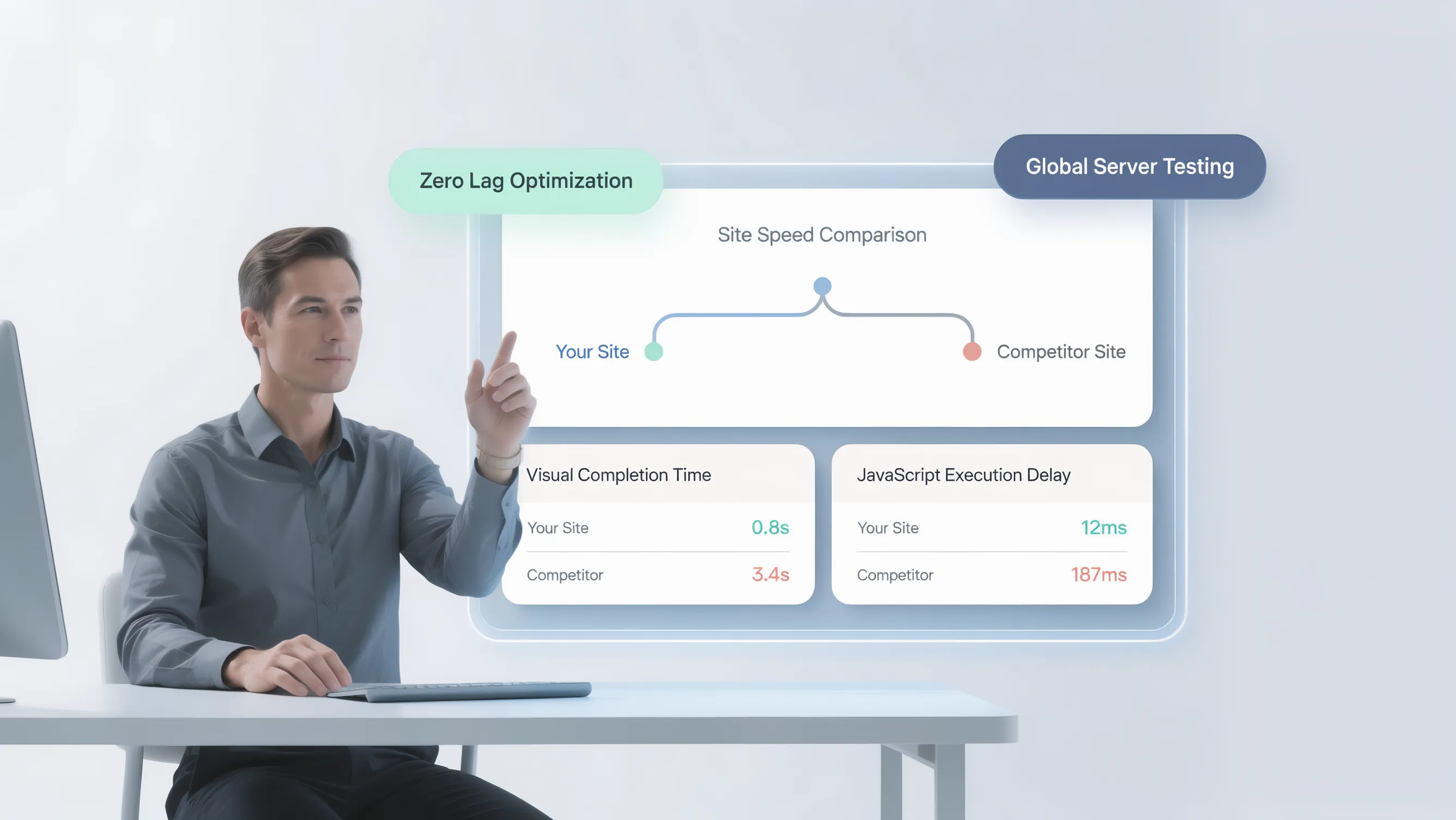
- Measure performance across different geographic server locations to see how distant visitors experience your pages.
2. Test the Page Your Visitors Actually Use
Testing only your homepage gives you a false sense of security. While your homepage might be lightweight and clean, your high-converting landing pages, blog articles, or product pages might be bogged down with oversized media and complex interactive elements.
Focus your website performance test on the real customer journey:
- High-Intent Landing Pages: Pages where you drive paid traffic or run lead acquisition campaigns.
- Core Product / Service Pages: Key decision-making pages where potential buyers spend their time.
- Top Organic Search Pages: The blog posts or guides driving the bulk of your search traffic.
3. Run the Test More Than Once Before Trusting the Number
A single performance test result is a clue, not a final verdict. Website speed naturally fluctuates based on real-world variables, including temporary network congestion, server load spikes, and third-party API response delays.
To get an accurate assessment:
- Run your chosen website speed checker 3 to 5 times in row.
- Discard the extreme high and low outliers.
- Look at the average baseline metrics across all runs to understand your site's true everyday performance.
4. Look Beyond the Score to See What Is Actually Slow
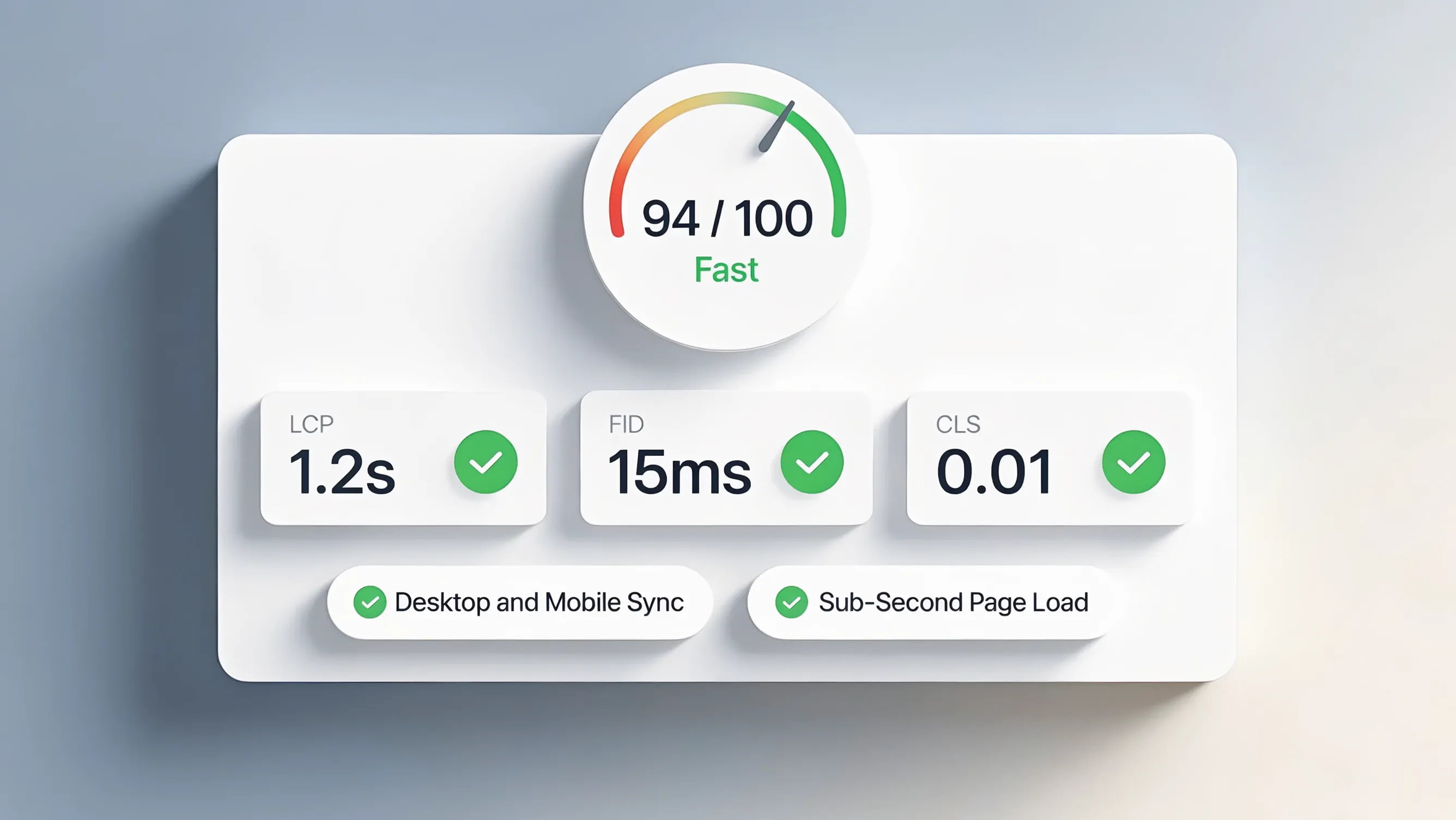
Headline performance scores (like an arbitrary grade out of 100) are useful for quick checks, but they don’t tell you what is wrong. To fix performance issues, you need to look at concrete user-centric metrics—often categorized under Core Web Vitals:
| Metric | What It Measures | Ideal Target |
|---|---|---|
| LCP (Largest Contentful Paint) | How fast the primary piece of content (hero image, main heading) loads on screen. | Under 2.5 seconds |
| INP (Interaction to Next Paint) | How quickly the page visually responds when a visitor clicks a button or taps a link. | Under 200 milliseconds |
| CLS (Cumulative Layout Shift) | How much the page layout unexpectedly jumps around as visual elements load in. | Score under 0.1 |
5. Check How Quickly the Page Starts Responding
When a user enters your URL, their browser requests data from your hosting server. The time it takes for the server to send back the very first byte of information is known as TTFB (Time to First Byte) or server response time.
If your server response time is slow, the visitor's browser sits idle waiting for data, regardless of how optimized your images or stylesheets are. High server response times usually point to cheap shared hosting setups, unoptimized backend database queries, or a lack of global caching networks (CDNs).
6. Check the Parts of the Page That Take the Longest to Load
When you run a website performance test, scroll past the overall summary score down to the waterfall chart or resource breakdown. This visual diagnostic reveals the exact weight and load sequence of every file on your page.
Look out for common performance culprits:
- Uncompressed Images: Massive 5MB camera files uploaded directly without downsizing or converting to modern WebP/AVIF formats.
- Bloated Third-Party Scripts: Dozens of tracking pixels, live chat widgets, pop-up tools, and analytics scripts loading simultaneously.
- Custom Font Files: Heavy, unoptimized web font families downloading multiple weights and styles before rendering body text.
7. Test Your Website on Mobile, Not Just Your Computer
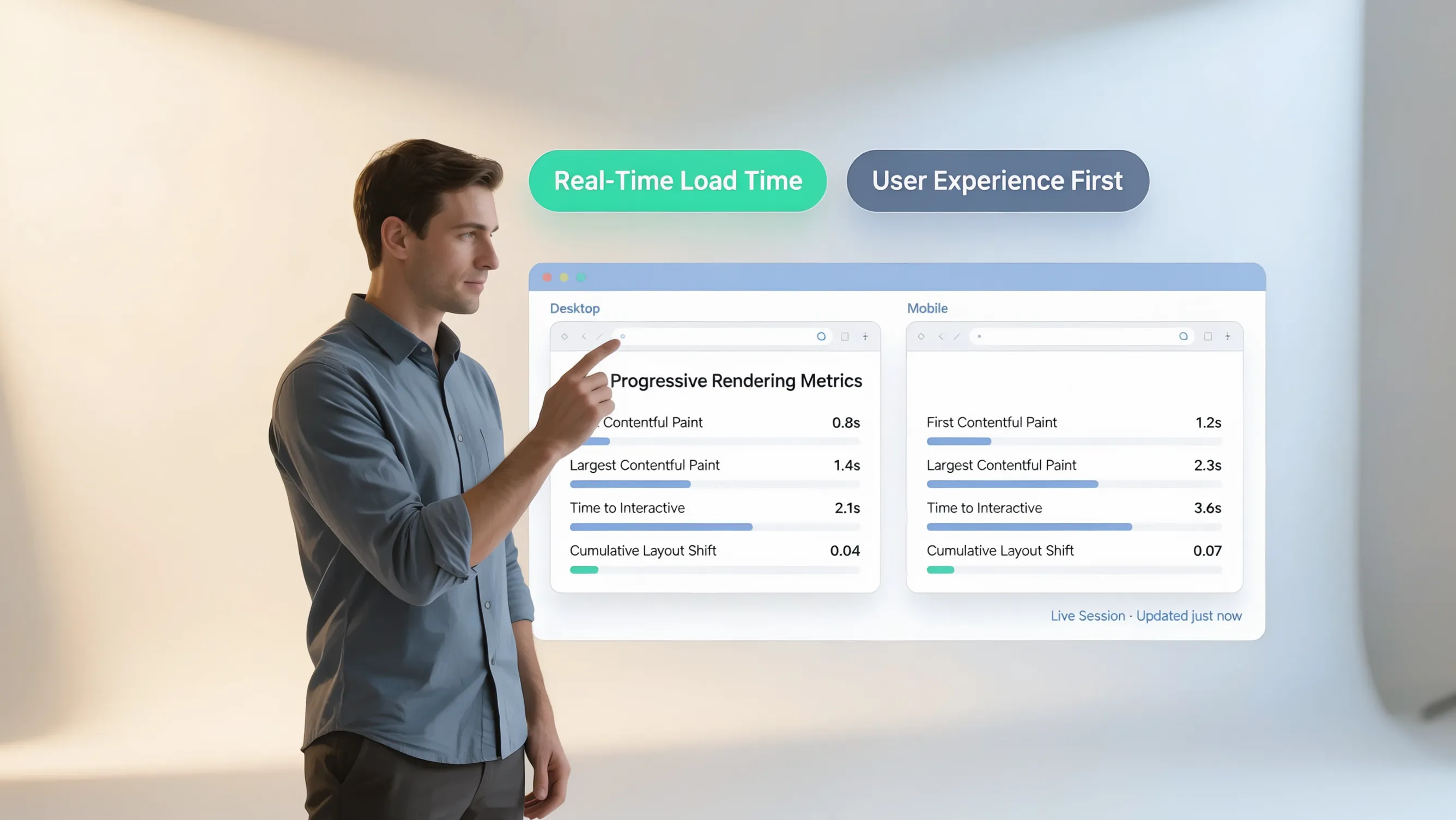
Testing on a high-speed desktop computer connected to fiber internet completely masks the friction mobile users face. Mobile devices possess slower CPU processors and connect via variable cellular networks (4G/5G).
When conducting a mobile speed test:
- Throttle network speeds in your testing tool to simulate real-world cellular connections.
- Ensure heavy visual elements stack vertically without causing horizontal scrolling glitches.
- Verify that interactive elements respond instantly to thumb taps without input lag.
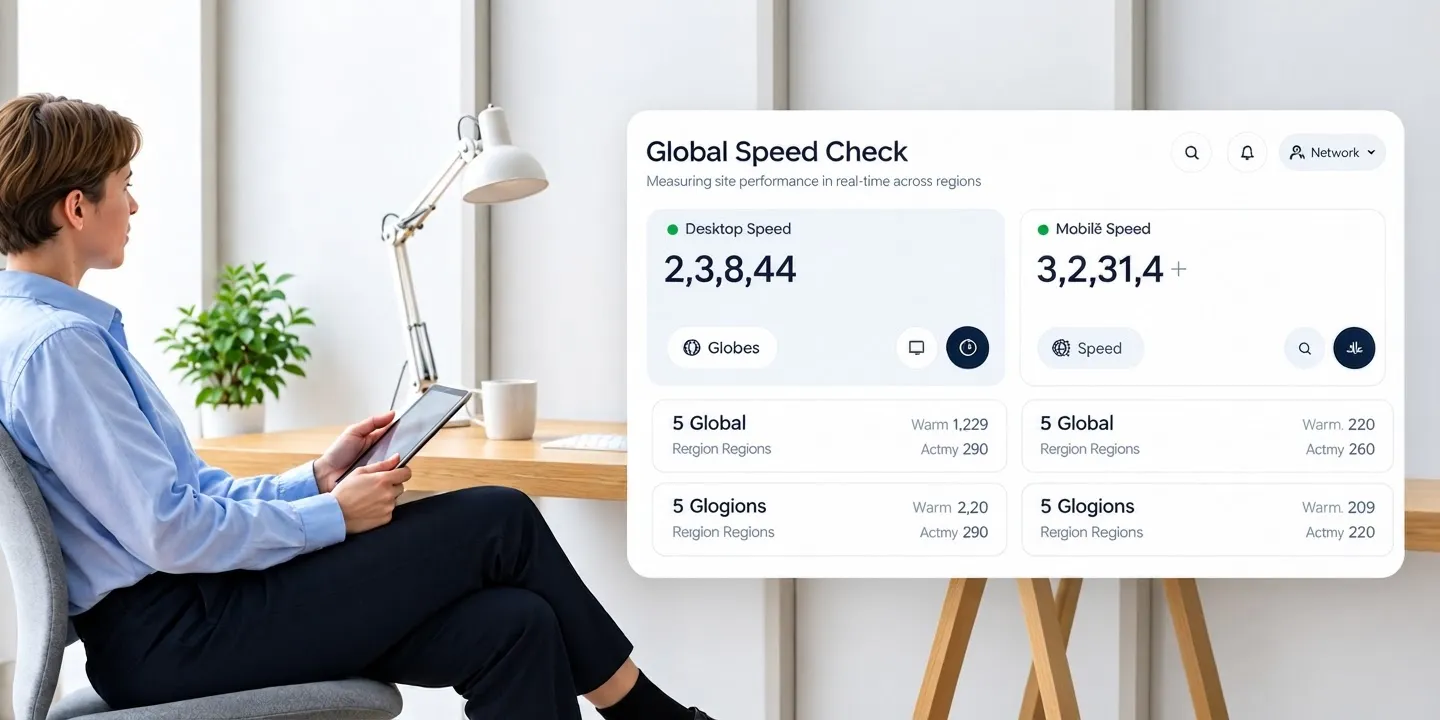
8. Compare Important Pages Instead of Testing Only the Homepage
Different pages utilize different templates, media layouts, and scripts. A clean, minimal homepage might pass performance checks with flying colors, while a media-rich product page fails completely. Regularly run a comparative page speed test across different page types:
By comparing pages side by side, you can instantly pinpoint which page templates need structural optimization.
9. Use Real Visitor Data When You Need More Than a Lab Test
Synthetic tests (lab data) simulate page loads in a controlled, artificial environment. While great for debugging during development, they don't capture the full spectrum of real-world device types, locations, and network speeds.
Real User Monitoring (RUM) collects performance metrics directly from actual visitors as they navigate your live site. Checking RUM data inside Google Search Console’s Core Web Vitals report shows you exactly how your real audience experiences your website day-to-day.
10. Find Out Whether the Problem Is Your Website, Hosting, or Something Else
When diagnosing slow performance, use this diagnostic process to categorize the root cause:
If TTFB is high across all pages ➔ Your server/hosting setup is the bottleneck.
If TTFB is low, but total render time is high ➔ Your page assets need optimization.
11. Turn Your Speed Test Into a Fix List
Don't panic when looking at a long diagnostic report. Prioritize fixes based on impact and effort:
- High Impact / Low Effort: Compress and resize all oversized images across your site. Convert files to WebP.
- High Impact / Medium Effort: Implement lazy loading so images below the fold load only as visitors scroll down.
- Medium Impact / Higher Effort: Audit third-party tracking scripts and remove unused plugins or tools.
12. Keep Checking Website Speed as Your Site Grows
Website speed is not a set-it-and-forget-it metric. As you publish new blog articles, add product videos, integrate sales tools, and update marketing banners, page weight steadily creeps up over time. Make website performance monitoring a routine habit:
- Test key pages whenever you publish a new major feature, landing page, or media campaign.
- Audit installed scripts every quarter and prune unnecessary third-party tags.
- Build on a high-performance foundation from day one so you don't have to manually fight technical debt later.
Skip the Technical Hassle: Build High-Speed Sites Automatically
Traditionally, maintaining high website speed meant spending hours optimizing code libraries, manually configuring caching plugins, managing CDN settings, and troubleshooting server bottlenecks. For non-technical business owners, this constant maintenance quickly becomes overwhelming.
Artificial intelligence has completely transformed how modern websites are built and maintained. Instead of dealing with complex technical code, you can build hyper-fast, fully responsive business websites automatically using modern visual platforms.
Using BoltWeb—an all-in-one AI website builder—you can eliminate technical friction completely:
- Zero Coding Required: Build professional, custom-styled websites without touching code or managing server configurations.
- Automated Speed Optimization: Pages are automatically built with high-performance asset pipelines, responsive image handling, and clean code architecture out of the box.
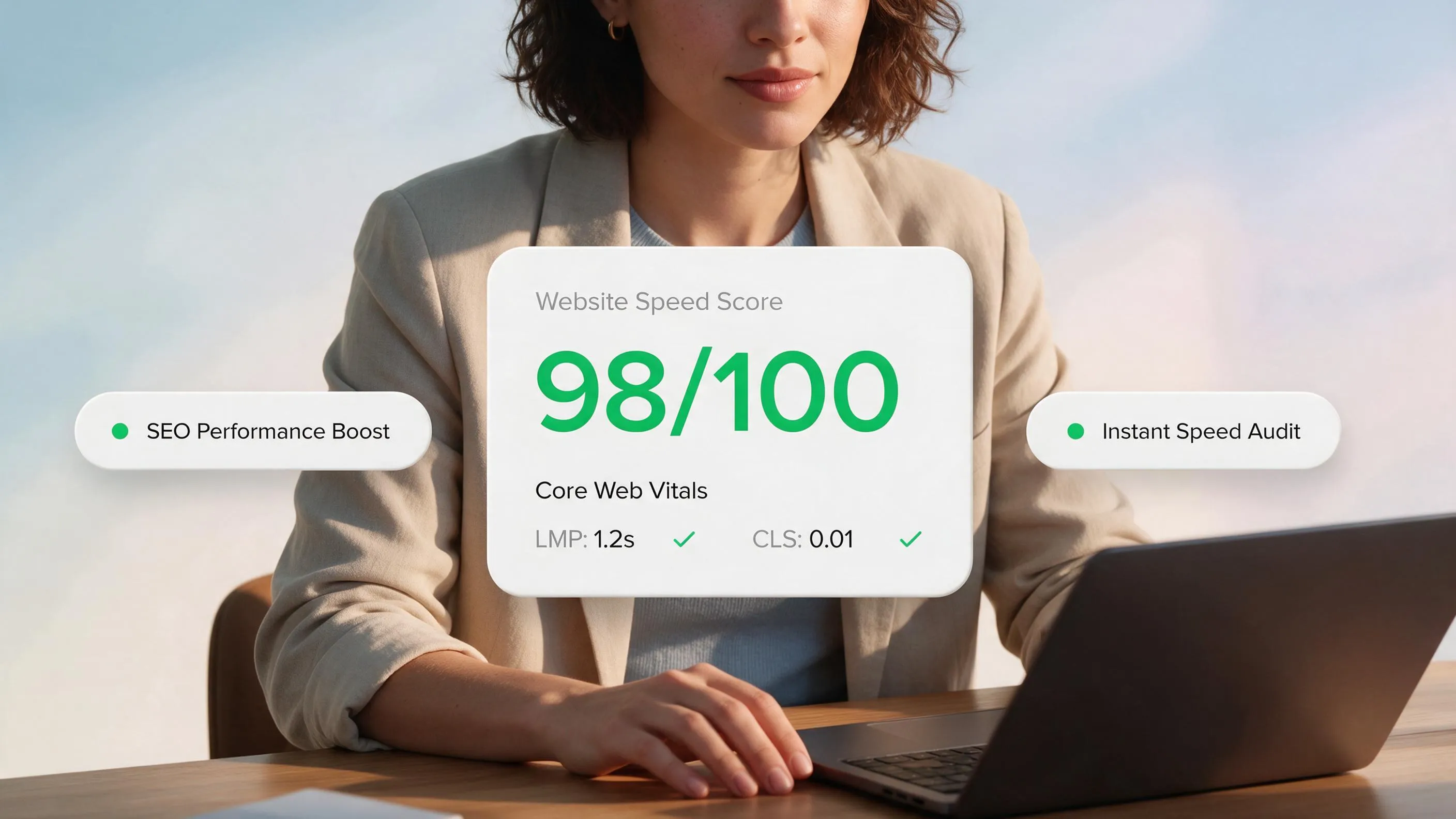
- Instant Speed Verification: Use the built-in BoltWeb Website Speed Tester to test and verify your site's performance anytime, giving you complete confidence that your visitors get a lightning-fast experience that converts.
Whether you need a reliable small business website builder or a robust business website builder, BoltWeb handles design, hosting, and performance optimization so you can focus entirely on scaling your brand.

FAQ: How to Check Website Speed
How do I test my website speed for free?
You can test your site performance instantly using free online tools like Google PageSpeed Insights, GTmetrix, or Pingdom. Simply paste your site address into the tool, and it will run a real-time audit of your loading time, performance metrics, and server response time. For the most accurate baseline, run tests during different times of the day and across both desktop and mobile settings.
What is a good website loading speed score?
Ideally, your website should load completely in under 2 to 3 seconds. When using performance auditing tools like Google PageSpeed Insights, aim for a score of 90 or above (green range). However, actual page load time in seconds matters more to real human visitors than achieving a perfect 100/100 synthetic score, so focus primarily on reducing real user loading friction.
Why does my site test fast on desktop but slow on mobile devices?
Mobile devices process web pages differently due to slower mobile CPU hardware, weaker cellular network connections, and uncompressed mobile assets. If your mobile page speed test comes back slow, it usually means your site is attempting to load unoptimized, high-resolution desktop images or heavy JavaScript files that overwhelm mobile processors.
How do I measure Core Web Vitals for my domain?
You can measure your site's Core Web Vitals directly within Google Search Console under the "Core Web Vitals" report, or by running a URL test through PageSpeed Insights. Focus on three main performance metrics: LCP (Largest Contentful Paint) for visual load speed, INP (Interaction to Next Paint) for page responsiveness, and CLS (Cumulative Layout Shift) for visual stability.
What is the difference between TTFB and total page load time?
TTFB (Time to First Byte) measures how quickly your web hosting server responds and delivers the very first byte of data to a visitor's browser. Total page load time measures how long it takes for every single image, script, and visual element on the page to fully render. If your TTFB is high (over 600ms), your web server or hosting provider is the main bottleneck.
Why do different speed test tools show totally different results?
Different speed test tools use varying test server locations, simulated network speeds, and testing hardware. GTmetrix often tests pages on unthrottled desktop connections, whereas Google PageSpeed Insights defaults to simulated mobile networks with throttled CPU speeds. Use Google's tool for SEO benchmarking and GTmetrix for detailed waterfall analysis of individual asset load times.
How often should I monitor my website loading speed?
You should run a speed test every time you make major site changes, such as installing new plugins, uploading uncompressed image banners, or updating your website design. For active e-commerce platforms and high-traffic business sites, using an automated speed monitoring service that alerts you to sudden performance drops is recommended to prevent loss of sales.
Does slow page speed directly lower my Google search rankings?
Yes, site performance and Core Web Vitals are official Google search ranking factors. A slow page speed increases your bounce rate—meaning visitors leave before reading your content—which signals to search engine algorithms that your page delivers a poor user experience, leading to lower rankings in search results.
What are the main reasons my web speed test results are low?
The primary culprits behind low page speed scores are unoptimized high-resolution images, bloat from excessive third-party plugins, render-blocking JavaScript, lack of browser caching, and slow, budget web hosting servers. Fixing these core technical issues will drastically improve your performance metrics across all speed test tools.
10. How can I speed up my website without hiring an expensive developer?
Yes! You can immediately improve page speed by compressing all uploaded images using free web tools, setting up automated browser caching, removing unused plugins, and switching to a high-speed, modern platform like BoltWeb. Modern platforms handle server optimization, image delivery, and asset minification automatically so your site stays fast without manual coding.