When you build a digital presence, learning how to add SSL to a website is easily one of the most critical steps in the entire launch process. An SSL certificate (Secure Sockets Layer) encrypts the connection between your user's web browser and your server. It converts an unencrypted http:// connection into a secure, trusted https:// web address.
Without an SSL certificate for website protection, popular search engines display immediate warnings to your visitors, dropping your conversion rates to zero and penalizing your search engine rankings.
Whether you run an e-commerce shop, an agency, or a personal portfolio, securing your site isn't optional anymore. Follow this definitive guide to set up your SSL setup correctly, transition seamlessly from HTTP to HTTPS, and protect your visitors from day one.
1.How to Add SSL to a Website and Turn HTTP Into HTTPS
Seeing that ominous "Not Secure" tag in your browser address bar is enough to panic any website owner. But here is the truth: getting that coveted security padlock isn't just about downloading a single file.
Learning how to add SSL to a website requires a complete system transition:
When you understand how to add SSL to website infrastructure, you take the first step toward building an authoritative, reliable brand on the internet.
2. Start With Your Domain, Because SSL Protects the Website Visitors Actually Reach
Before issuing an encryption key, you need to understand what you are actually securing. An SSL certificate is digitally cryptographic proof bound directly to your specific web domain address.
If you purchase or provision a certificate, it must match the exact URL structure visitors type into their browsers:
- Primary Domain: Secures yourdomain.com.
- WWW Subdomain: Secures www.yourdomain.com.
- Wildcard SSL: Secures your main domain alongside every single subdomain (such as app.yourdomain.com or shop.yourdomain.com).
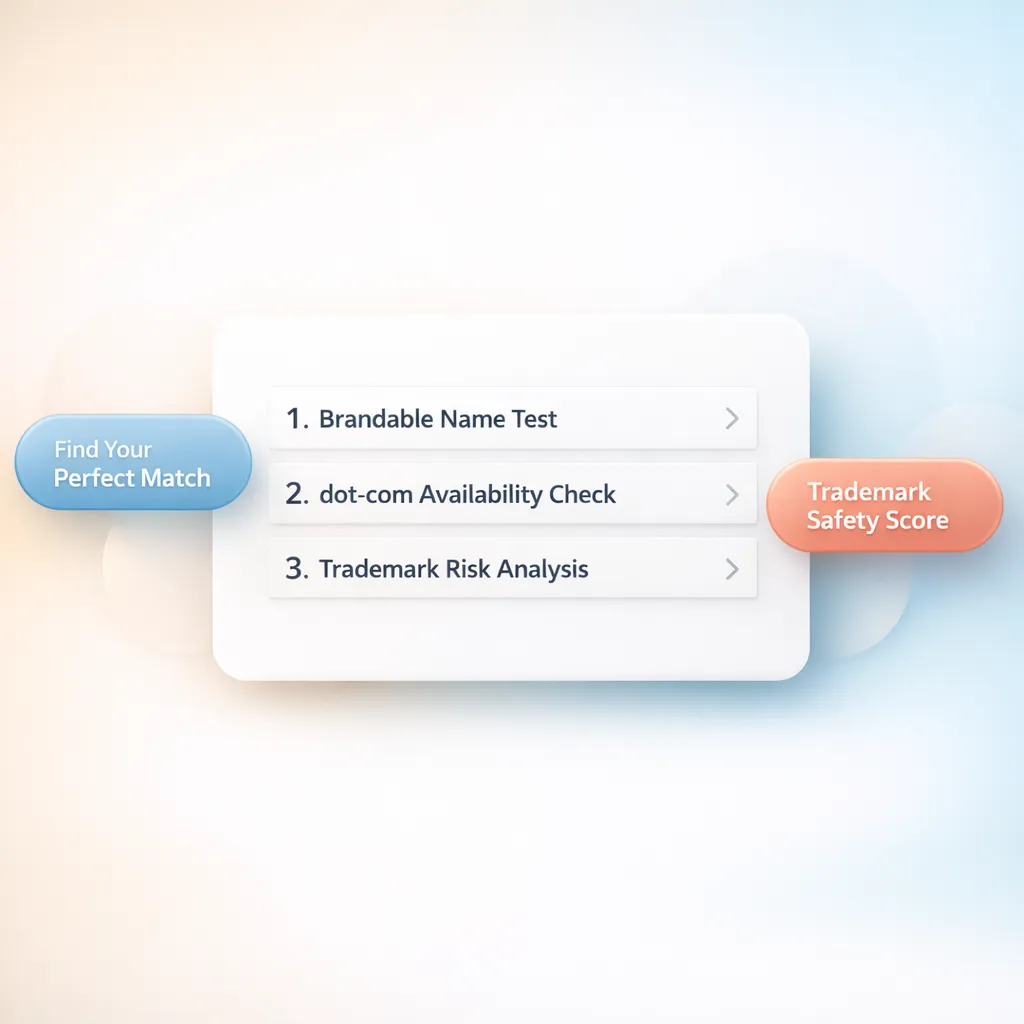
Securing your address is impossible without having control over your web address first. If you haven't bought your address yet, check out our step-by-step framework on how to choose a domain name for your business to make sure your foundation is rock solid.
3. Check Whether Your Hosting Already Includes an SSL Certificate
Years ago, business owners had to pay premium yearly fees to domain registrars just to keep basic encryption active. Today, that is rarely the case.
Before buying anything, check if your hosting infrastructure offers a free SSL certificate:
Most modern hosting providers supply automated, zero-cost SSL certificates that auto-renew every 90 days behind the scenes. If you are exploring various hosting solutions, reading our guide on what is website hosting will help you understand how native encryption features are bundled into hosting tiers.
4. Connect the Certificate to the Right Domain
Installing an SSL certificate on a server doesn't automatically mean your domain knows how to use it. You must complete domain validation and configure server bindings.
To ensure your SSL certificate for domain activation works smoothly:
- Domain Control Validation (DCV): Prove you own the address by adding a TXT record to your DNS settings or uploading a verification file.
- Server Binding: Ensure your web server (Nginx, Apache, or IIS) is configured to serve web traffic on Port 443 (HTTPS) rather than standard Port 80 (HTTP).
- Chain Certificate Installation: Ensure intermediate CA certificates are properly installed so mobile devices trust the connection.
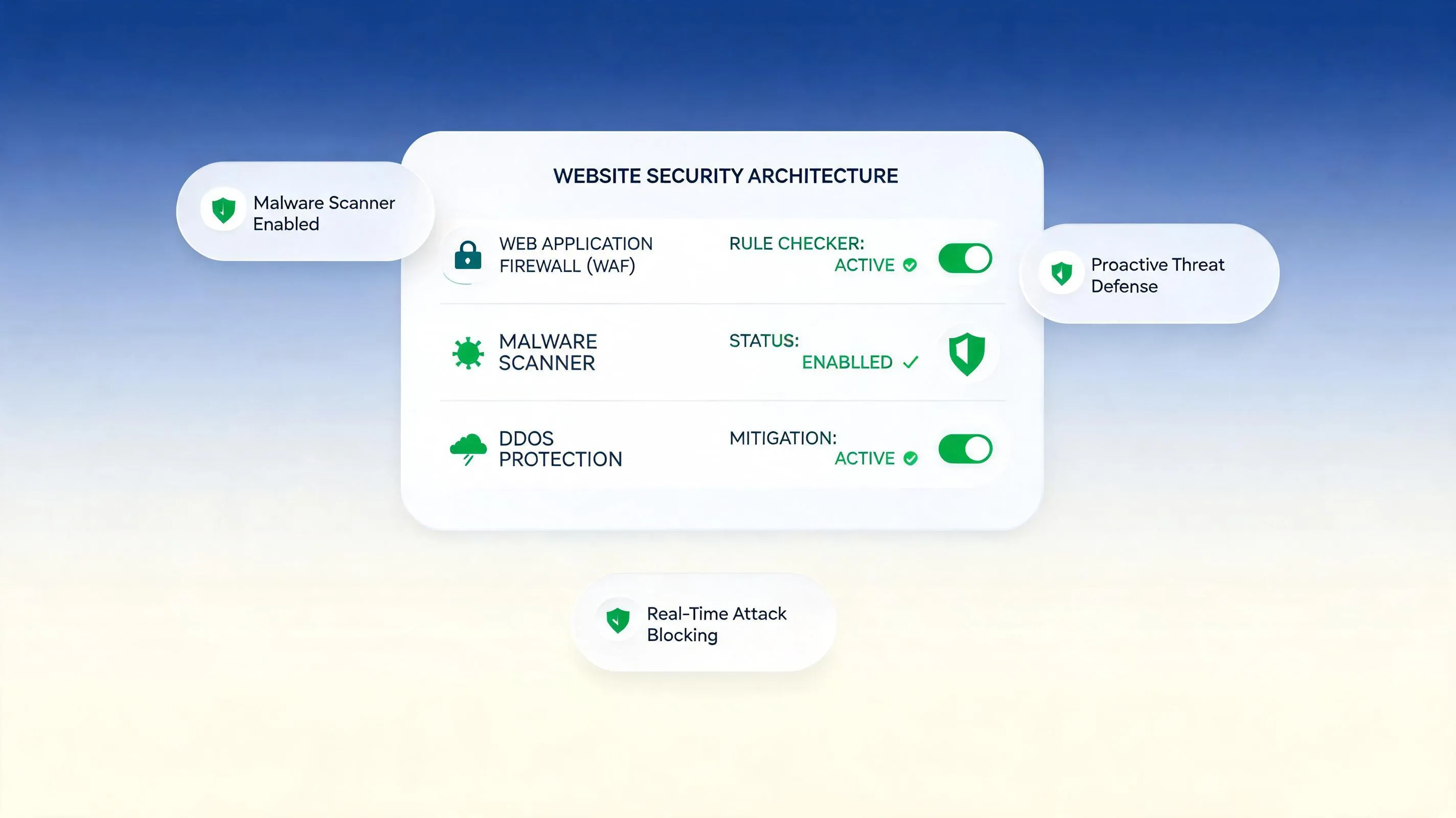
5. Make Sure HTTPS Works Before You Redirect Anything
Hold on! The biggest mistake web administrators make when figuring out how to install SSL certificate files is turning on forced redirects before testing the actual secure path. If your HTTPS installation has an error and you turn on automatic redirection, your site will crash into an endless loop error (ERR_TOO_MANY_REDIRECTS).
Always test first:
Only after verifying that the raw HTTPS version loads properly should you move on to redirecting incoming traffic.
6. Redirect Every HTTP Visit to the Secure Version
Even with a working certificate, legacy visitors, old backlinks, and saved browser bookmarks will still default to the unencrypted http:// version of your site. You must force a 301 Permanent Redirect from HTTP to HTTPS across your server:
| Server / Platform Environment | Implementation Method | Resulting Behavior |
|---|---|---|
| Apache Web Server | Update .htaccess with rewrite rule conditions. | Automatically routes all Port 80 traffic to Port 443. |
| Nginx Web Server | Add a return 301 https://$host$request_uri; block. | Instantly sends visitors to the secure URL. |
| Modern Managed Platforms | Toggle the "Force HTTPS" switch in control panel. | Handles redirect rules automatically without code. |
Enforcing a permanent HTTP to HTTPS redirect ensures every incoming visitor is immediately upgraded to a secure, encrypted browsing session.
7. Fix the Links That Still Point to HTTP
You installed the certificate, forced the redirect, but the browser padlock is broken or displays an exclamation mark. What went wrong? You are dealing with mixed content errors.
Secure Web Page (HTTPS) ──► Loads Insecure Image (HTTP) ──► Mixed Content Warning!
Mixed content happens when an HTTPS webpage attempts to load underlying page elements—such as internal images, CSS stylesheets, or tracking scripts—over an unencrypted http:// connection. To resolve this:
- Update internal hardcoded links in your site code from http:// to https://.
- Use relative pathing (e.g., /images/logo.png instead of http://yourdomain.com/images/logo.png).
- Implement a Content-Security-Policy header to automatically upgrade insecure requests.

8. Check Your Images, Scripts, Fonts, and Other Resources
Insecure assets do more than break visual aesthetics—they create genuine security vulnerabilities that malicious third parties can exploit via man-in-the-middle attacks. Run through your page assets to ensure total compliance:
- Third-Party Scripts: Ensure external tracking scripts (Google Analytics, meta pixels, live chat widgets) use secure https:// source paths.
- Custom Typography: Verify that web fonts hosted on external servers load over encrypted endpoints.
- Embedded Media: Check video embeds, audio players, and external image hosts.
If you are currently rebuilding an older site to meet modern security standards, review our strategic walkthrough on how to redesign a business website to clean up legacy code structures simultaneously.
9. Make HTTPS the Default Everywhere Visitors Can Enter Your Site
A secure website requires total structural continuity. Every entry point must systematically funnel users into a single, unified HTTPS environment.
When you migrate your site:
- Update your Canonical Tags to point directly to the https:// versions of your URLs.
- Update your XML Sitemap so search engine crawlers index secure endpoints exclusively.
- Update your web address in Google Search Console and core social media account profiles.
Aligning your technical setup with proper SEO for new website strategies ensures search engines re-index your secure pages without losing organic ranking momentum.
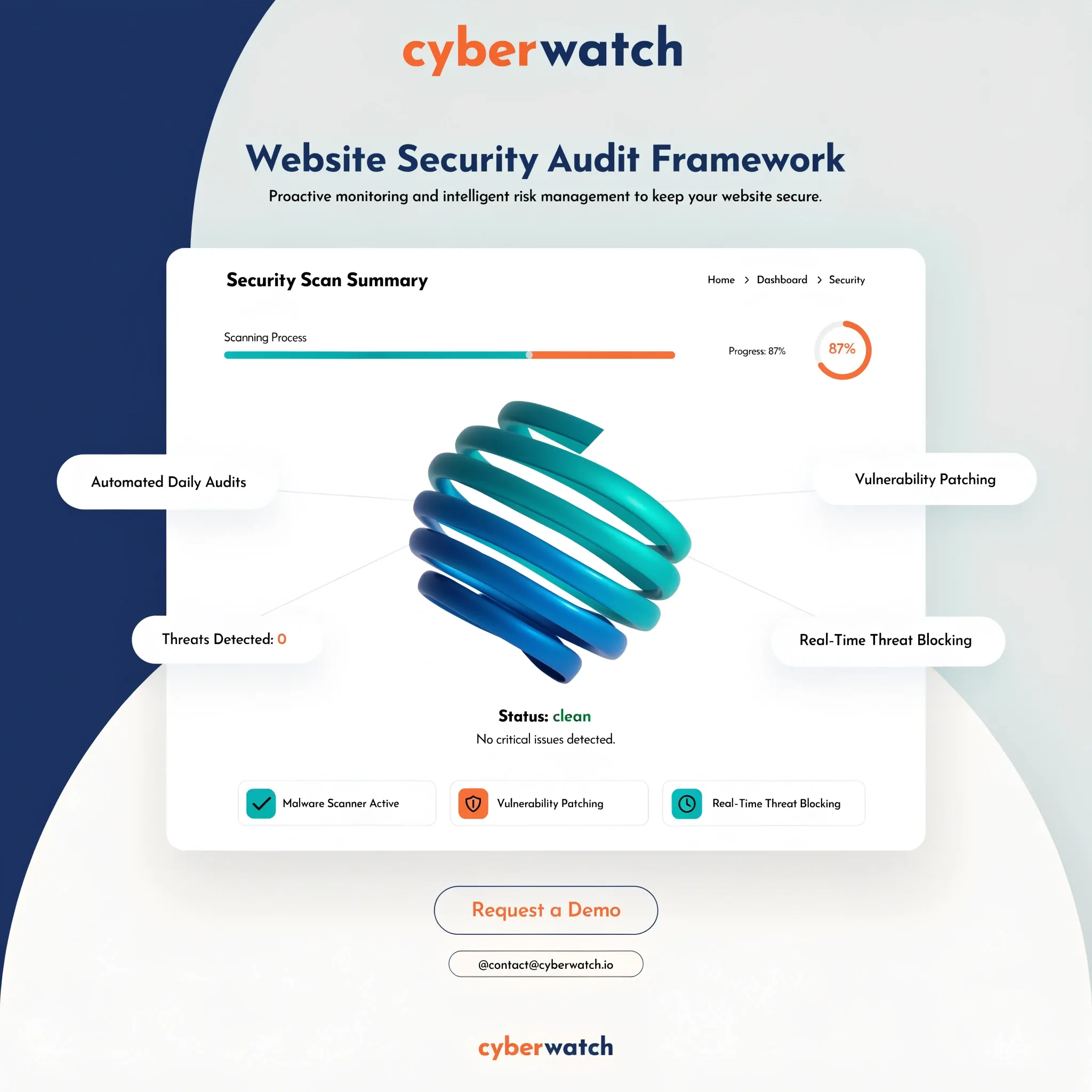
10. Check Your Certificate Before Visitors Find the Problem for You
Never assume your security installation is flawless just because it looks fine on your personal laptop. Different devices, mobile browsers, and older operating systems evaluate SSL certificates with varying strictness. Validate your website SSL setup using these diagnostic steps:
- Run a Full Security Audit: Use dedicated tools like the SSL Labs Certificate Test to analyze your certificate chain, cipher strength, and server handshake speed.
- Inspect Certificate Expiration Dates: Verify that your issued certificate shows a valid date range and identifies a recognized Certificate Authority (CA).
- Verify Mobile Compatibility: Test your URL across iOS and Android browsers to confirm that no chain untrust errors appear on mobile networks.
11. Keep Your SSL Certificate Working After You Install It
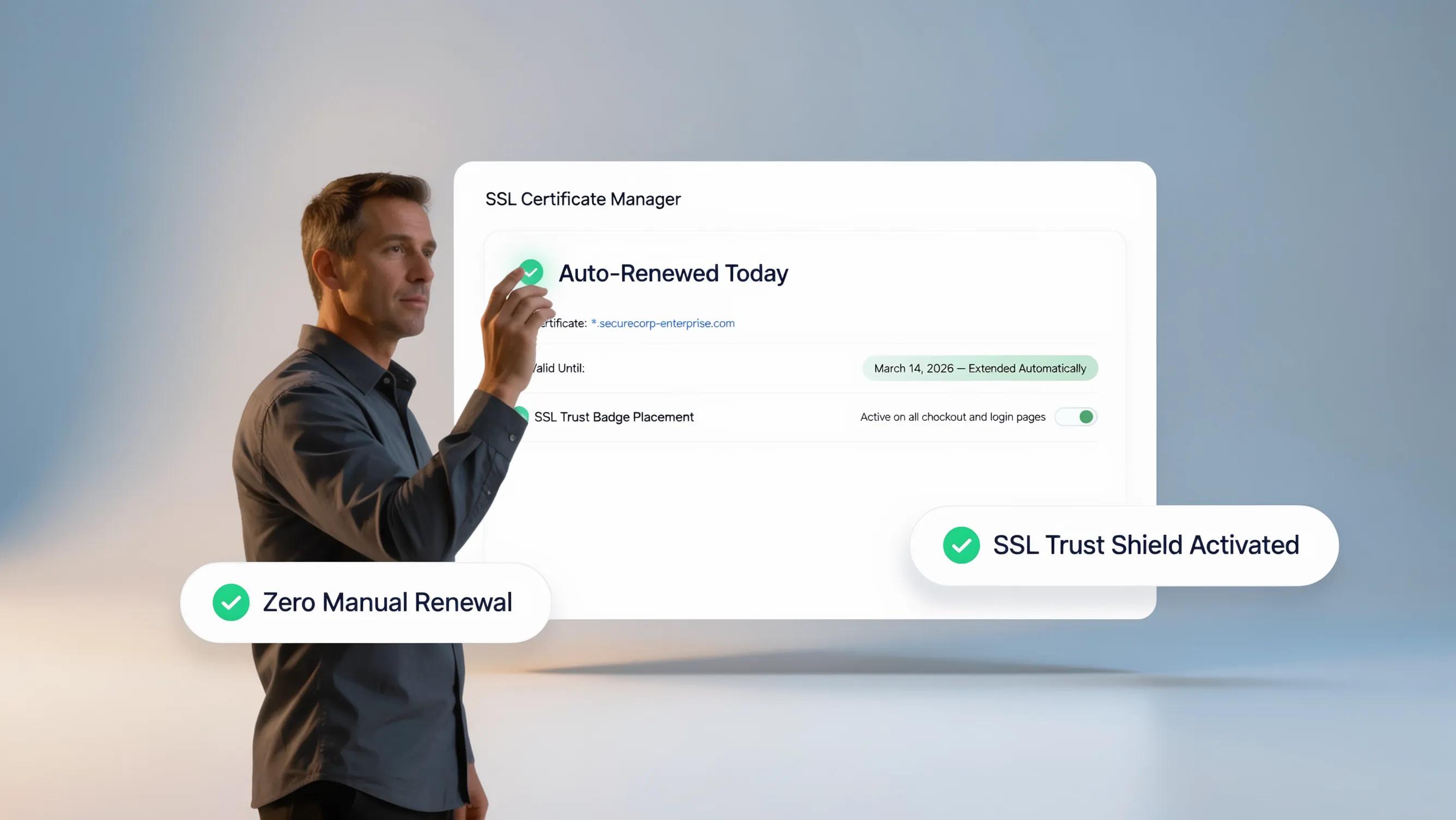
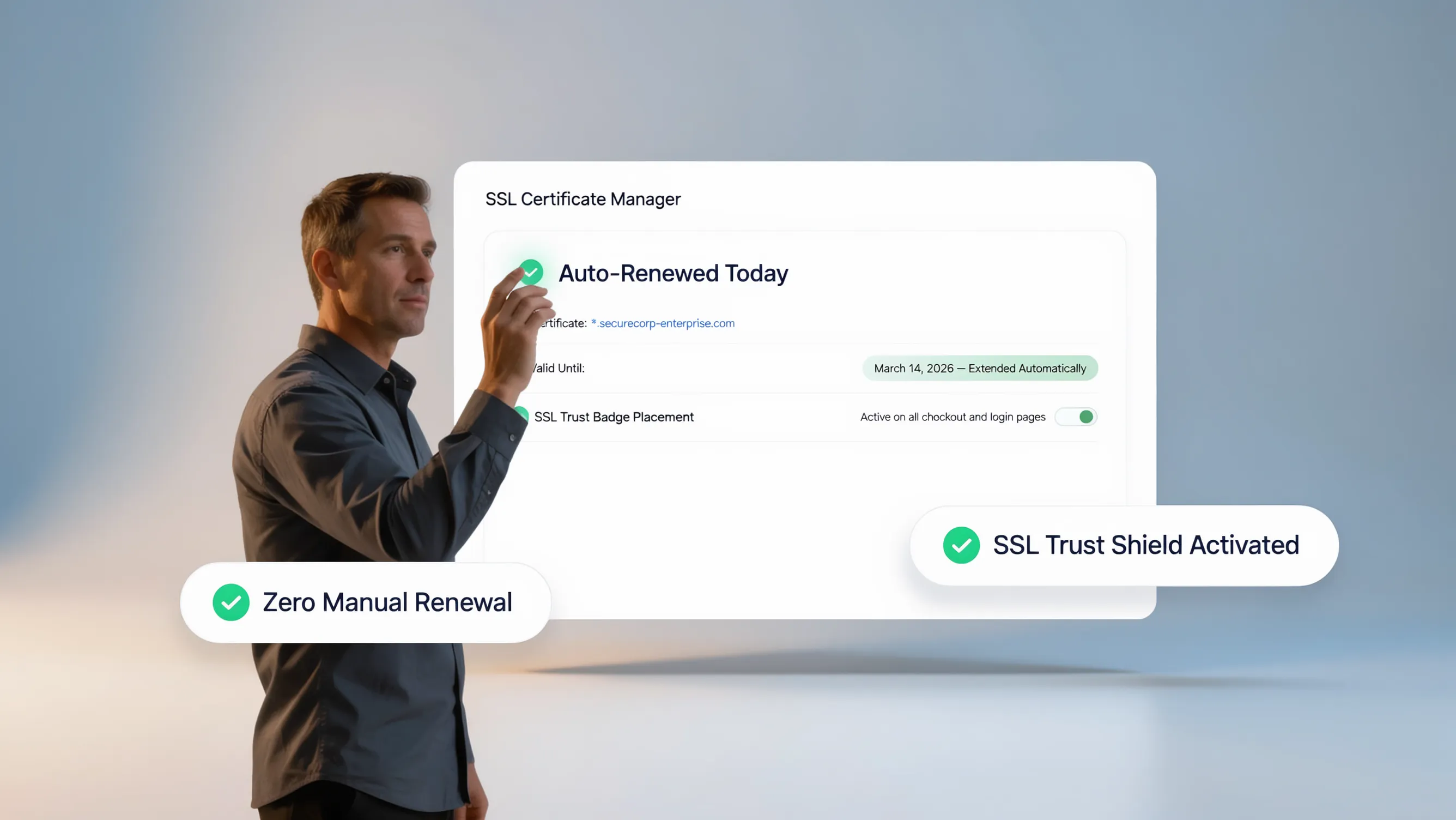
Installing an SSL certificate isn't a one-and-done project. Certificates issued today have a maximum lifetime of 90 to 397 days depending on the provider, meaning they will expire if not properly maintained.
Prevent accidental downtime by establishing maintenance protocols:
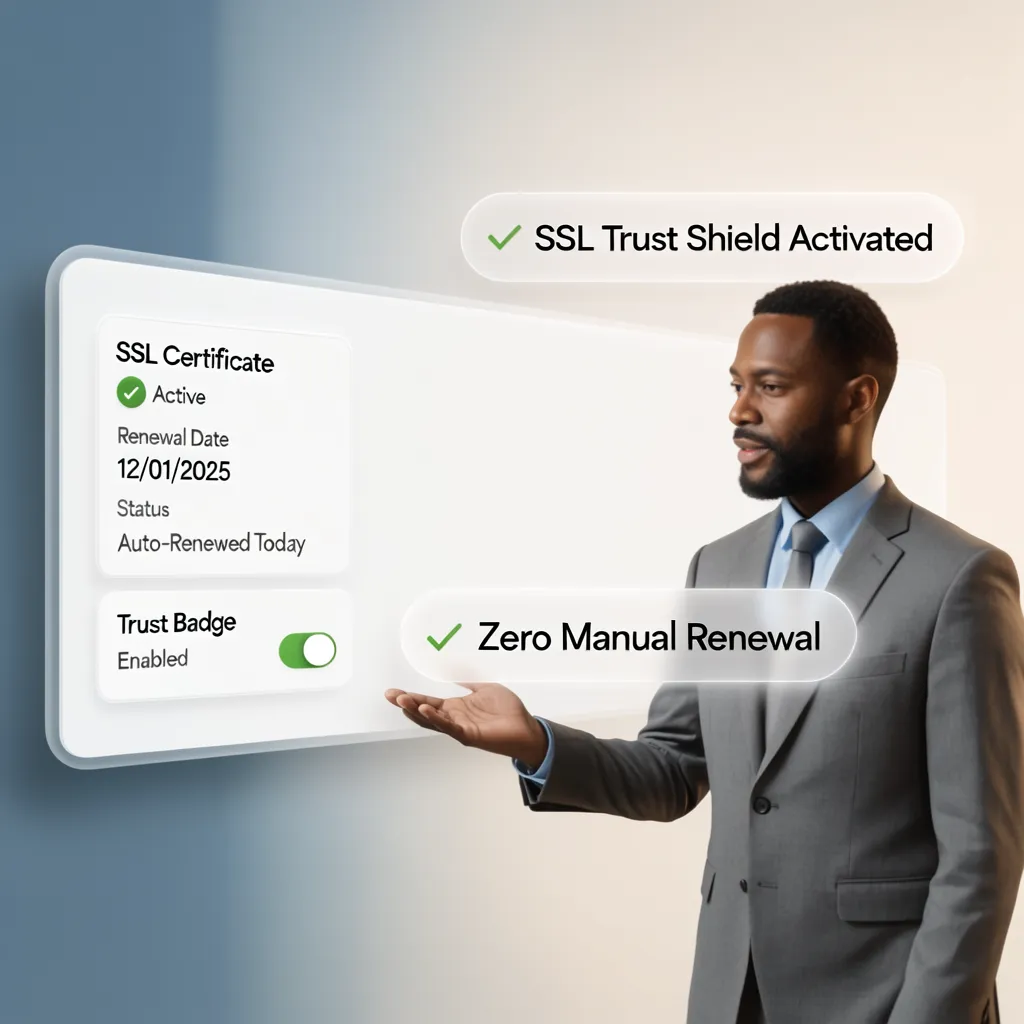
- Enable Auto-Renewal: Ensure your hosting control panel or Certbot cron job is configured to auto-renew certificates at least 30 days before expiration.
- Set Up Expiration Alerts: Configure domain monitoring notifications to alert your team before a security credential lapses.
- Monitor Subdomain Changes: Remember to update your SSL configuration whenever you create new landing pages or connect custom subdomains.
12. Add SSL Without Managing Certificates and HTTPS Configuration Yourself
If managing server ports, editing .htaccess files, fixing mixed-content errors, and tracking certificate expiration dates sounds overwhelming—you are not alone. For modern business owners, managing raw server configurations takes precious time away from actually growing a company.
This is where an automated platform like BoltWeb changes everything.
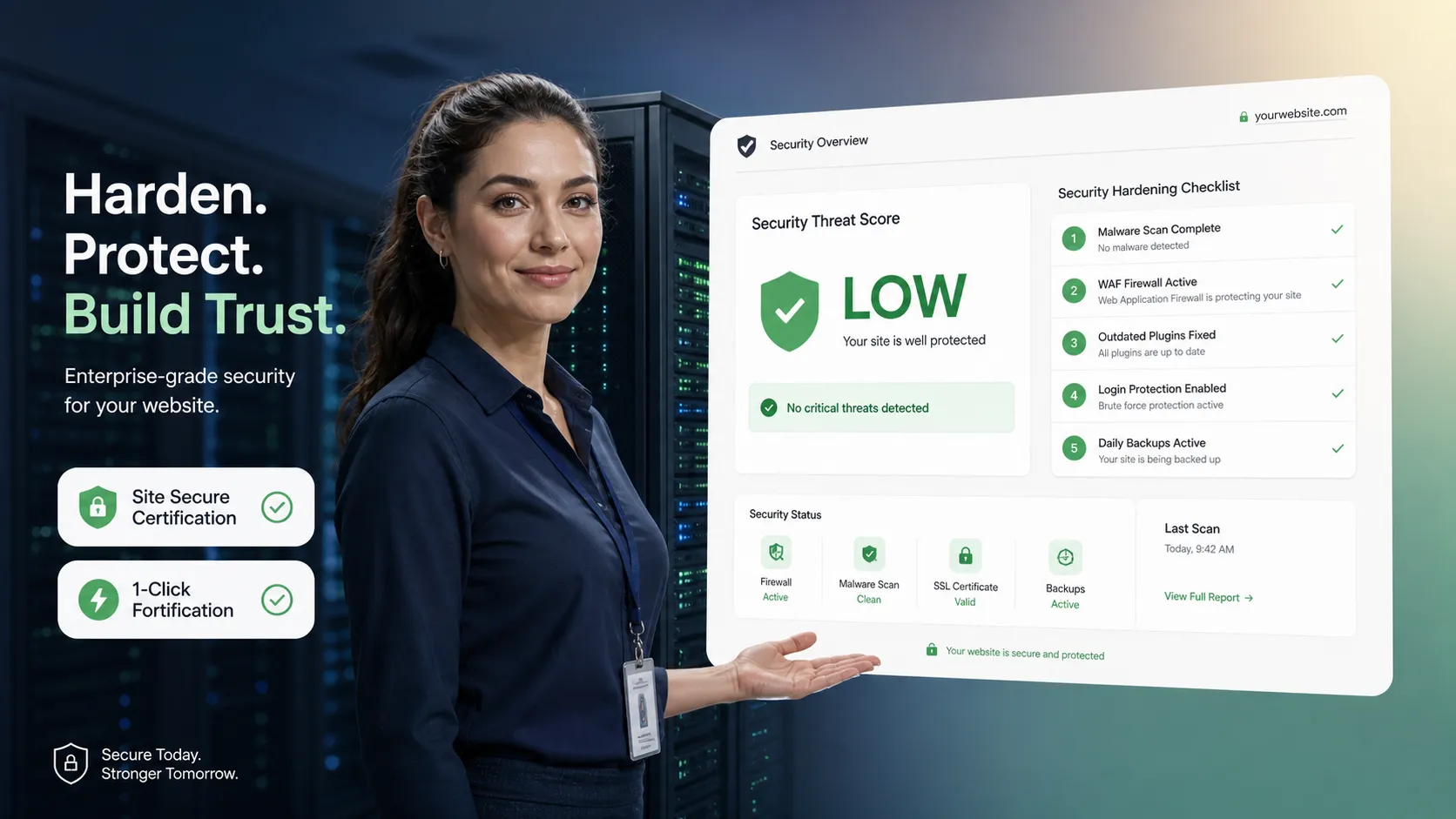
When you launch your site with BoltWeb, technical security management is handled entirely behind the scenes:
- Pre-Configured SSL: Every domain and landing page launched on BoltWeb automatically comes with an enterprise-grade SSL certificate pre-installed.
- Zero Technical Overhead: No coding, no server bindings, and no mixed content errors. The automated AI website builder builds, secures, and publishes your platform instantly.
- Automated Security & Hosting: Enjoy hassle-free background renewals, HTTPS enforcement, and high-speed hosting without lifting a finger.
Skip the headache of manual SSL configuration. Build your secure, high-converting business website on BoltWeb today!
FAQ: How to Add SSL to a Website
What is an SSL certificate and why does every website need one?
An SSL (Secure Sockets Layer) certificate encrypts the data sent between your visitor's web browser and your website server. This protects sensitive information—such as passwords, contact forms, and credit card details—from hackers and eavesdroppers. Furthermore, web browsers like Google Chrome mark websites without SSL as "Not Secure," which destroys visitor trust and turns away prospective customers.
How do I get a free SSL certificate for my website?
You can easily obtain a free SSL certificate through open certificate authorities like Let's Encrypt or security providers like Cloudflare. Most modern web hosting platforms and website builders now include automated, free SSL installation powered by Let's Encrypt directly inside your account dashboard, allowing you to secure your domain name without paying annual certificate fees.
How do I redirect HTTP traffic to HTTPS after installing SSL?
To force all visitors to use a secure HTTPS connection, you must configure a 301 permanent redirect. On Apache web servers, you can add an HTTPS redirect rule inside your site's .htaccess file. On Nginx servers, update your server configuration block. Alternatively, modern CMS platforms and web hosts offer a simple one-click toggle to enforce HTTPS across every page automatically.
How long does it take for an SSL certificate to activate on a domain?
SSL activation typically takes anywhere from 5 minutes to a few hours. If your domain DNS records were updated recently, propagation delays can temporarily stall SSL verification. Once domain verification (via DNS records or HTTP validation files) completes, your web server applies the SSL certificate, and the secure padlock icon appears in browser address bars globally.
How do I fix mixed content errors after enabling HTTPS?
A mixed content error occurs when an HTTPS web page attempts to load unencrypted assets (such as images, scripts, or CSS stylesheets) over HTTP. Fix this by updating your site's hardcoded URLs to use relative paths or explicit https:// protocols, or by serving assets through an automated "Really Simple SSL" plugin or server header rule to rewrite insecure requests instantly.
What is the difference between DV, OV, and EV SSL certificates?
Domain Validation (DV): Verifies basic domain ownership. It is free, installs in minutes, and is ideal for blogs, personal sites, and small business websites. Organization Validation (OV): Verifies business legitimacy alongside domain ownership, making it suitable for corporate sites. Extended Validation (EV): Involves strict corporate background verification, providing the highest level of trust for enterprise portals, major financial institutions, and high-volume e-commerce platforms.
What is a Wildcard SSL certificate and when do I need one?
A Wildcard SSL certificate secures your primary domain along with an unlimited number of first-level subdomains under a single certificate (e.g., *.yourdomain.com). If you manage a complex site structure featuring multiple subdomains, a Wildcard SSL certificate saves you time and configuration effort compared to issuing single-domain SSL certificates individually.
Does installing an SSL certificate improve my Google search rankings?
Yes, Google officially uses HTTPS as a positive search ranking signal. Moving your website to HTTPS builds domain authority and protects your organic search traffic. Furthermore, secured websites load faster on modern HTTP/2 network protocols, improving overall user experience metrics and reducing bounce rates across desktop and mobile devices.
How do I renew my SSL certificate before it expires?
If an SSL certificate expires, web browsers immediately block access to your site with a full-page security warning, driving visitors away. Free SSL certificates (like Let's Encrypt) require renewal every 90 days, while paid certificates renew annually. Most modern managed hosts automate SSL renewal via background cron jobs, eliminating the risk of accidental certificate expiration.
Can I install an SSL certificate on a website without web hosting access?
Yes, you can route your site's web traffic through a cloud network provider like Cloudflare. By updating your domain name servers (NS records) to point to Cloudflare, you can enable Flexible or Full SSL encryption between visitors and your site without modifying backend server files or navigating web host control panels manually.
What causes an "SSL Certificate Name Mismatch" error?
A Name Mismatch error happens when the domain name listed on your SSL certificate does not match the URL entered in the browser bar (for instance, if your certificate covers yourdomain.com but omits www.yourdomain.com). Resolving this requires reissuing or reconfiguring your SSL certificate to explicitly cover both www and non-www domain variations via Subject Alternative Name (SAN) entries.
What is the easiest way to get a fully secured website with SSL built-in?
The simplest way to secure your online presence without touching code or server settings is building your site on a modern platform like BoltWeb. Platform-level hosting provisions, installs, and auto-renews free high-grade SSL certificates instantly upon domain connection, ensuring your site stays permanently encrypted, fast, and secure out of the box. Explore the best website builder for small business needs to launch securely today.